
What a browser cannot check
Tick these yourself as you go. They are part of the printout.
Test the screen, touch, sound, camera, keyboard and sensors of a used device in about ten minutes, right in your browser, before you hand over any money.
Last updated:
A used phone, laptop or monitor can look perfect in photos and still have a dead patch of touch screen, a stuck pixel or a microphone that only works on one side. Most of these faults are quick to find if you know where to look, and they are much easier to raise before the sale than after it. The checklist below takes about ten minutes and uses only your browser, so it works at a seller's door, in a shop or on your own desk.
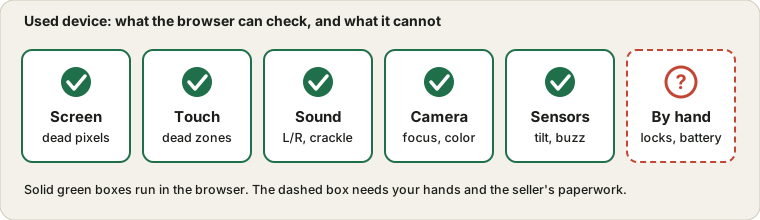
Browser tests cannot see everything. They check what a web page can reach, which covers the screen, touch, sound, camera, keyboard, mouse and common phone sensors. Battery wear, locks, accounts and water damage need the checks in the last section.
Open each test on the device you are buying, not on your own phone. If a test asks for microphone, camera or sensor access, allow it. Nothing is uploaded; the tests run locally in the browser. Mark each test with the bar under it and the device report collects the results, plus the screen, refresh rate and sensor details of that device, into one list you can copy or print. Tests you mark as fine are ticked here automatically.
Each row is a test, and each tick is yours. The extra part is that the page also looks at your device report. If you opened the Dead Pixel Test earlier and pressed "Looks fine", that row is already ticked when you come back, with a small "Marked fine" tag. If you pressed "Found a problem", the row stays unticked and shows a "Problem logged" tag with whatever note you typed, so a failure never gets buried under a green tick.
The real risk with a used device is rarely a part you tested and misjudged. It is the one you skipped. You check the screen, the seller starts talking about the price, and nobody ever speaks into the microphone. A list that fills in as you go, and says "9 of 13 done, 1 problem" at the top, makes the gap obvious. The Phone, Laptop and Monitor switch hides tests that make no sense for what you are holding, so you are not hunting for a gyroscope on a monitor.
Phone, laptop or monitor. Add a short label if you want it on the printout.
Run it, then mark the result with the bar under the tool.
Tick the hand checks yourself. Those are not in the device report.
The printout drops the menus and keeps only the list, which is handy for a price discussion.
Some honest limits. A tick means you did the test, not that the device passed, so read the tags. Everything is stored in this browser on this device, so ticks made on a seller's phone stay on that phone until you press Reset ticks. And the list is only as complete as a browser allows: it has no way to see battery wear or an account lock, which is why the by-hand section below exists.
Tick these yourself as you go. They are part of the printout.
Take a photo or short video of the fault on screen, then ask the seller for a lower price, a repair or a refund before you pay. For a single stuck pixel, read dead pixel vs stuck pixel first, since that fault is sometimes fixable and is treated differently by manufacturers than a cluster of bad pixels. If several tests fail on the same device, it is usually safer to walk away.
No. Your ticks and the optional device label are kept in this browser only, under their own storage entry, and nothing is sent to a server. The checklist reads your device report to pre-tick tests you already marked fine, but it never changes the report.
Because you already marked that test as looking fine on the test page, and the checklist reads that mark. Untick it if you want to run the test again. Your choice is remembered and the report mark is left alone.
The ticks stay in that phone's browser. Press Reset ticks when you finish, and clear the device label too, so the next person does not see your notes.