
On this page
- What a printer test page shows
- Magenta nozzle lines missing
- How to print the test page
- Which patterns to print
- Reading your printed page
- Inkjet and laser test pages
- Print settings that spoil a test
- How often to print one
- Where the test page comes from
- Frequently asked questions
- Fixing common problems
- More tools on ProDeviceTest
What a printer test page shows
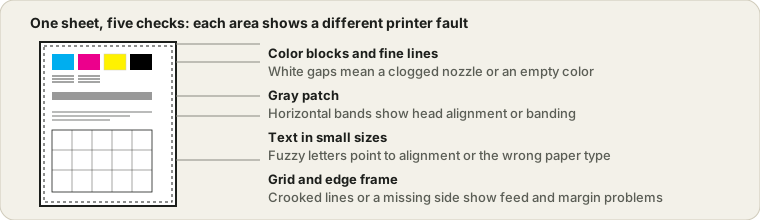
A test page is a deliberate stress test on one sheet of paper. Solid blocks in each ink or toner color show whether a color is running out. Rows of very fine lines show whether every nozzle in an inkjet head is firing, because one blocked nozzle leaves a thin white line in its place. A smooth gray patch shows banding, small text shows whether the head is aligned, and a grid and frame show whether paper feeds straight and whether the printer clips the edges.
The point of printing it is to separate causes. If a document prints badly, the fault could be the file, the driver, the paper or the printer. A clean test page rules out the printer. A bad one tells you which part of the printer to look at. This page lets you choose which patterns to print, so you can test one thing without wasting ink on the rest.
The colors are screen colors converted by your driver, so they are good for spotting faults and not for judging exact color accuracy. If you are deciding whether a color problem is the printer or your monitor, check the screen first with the Dead Pixel Test and the Gradient Test.
Magenta nozzle lines missing: reading an inkjet test page
Say you print the Full check on an inkjet and the cyan, yellow and black blocks look solid, but the magenta block is slightly pale and its row of fine lines has gaps. You count the lines: there are 30 in each color, and 6 of the magenta ones are missing. That is 6 out of 30, or 20 percent of that color's nozzles, so magenta is clearly blocked while the other three are fine.
You run one head cleaning from the printer's utility and print the nozzle check again. Now 2 of the 30 lines are missing, about 7 percent. Better, but not clear. A second cleaning brings it to 0 missing and the block is solid. In the diagnosis helper you would have ticked "White lines or gaps" and "A color block is missing or very pale" the first time, and the advice is the same sequence: clean, reprint, and only replace the cartridge if the gaps are still there after two or three cleanings.
The counter-case is a uniformly pale sheet with no gaps. That is not a clog. Check the quality setting first, because Draft or Economy mode prints lighter on purpose, and ink saver on this page would do the same.
How to print the test page
- Load plain paper and pick a preset
Use plain A4 or Letter paper that is not creased. The Full check preset covers everything. If you only suspect one problem, choose Nozzle and color or Alignment instead.
- Choose paper size and check the preview
The preview shows the sheet at the same proportions as the paper. Switch to Black and white to test black ink or toner on its own, and leave the ink saver off for a real fault hunt.
- Press Print and set the dialog correctly
Set scale to 100 percent (Actual size), margins to None or Default, Background graphics on, and the paper size to match. Choose Save as PDF first if you want to look at the layout without using paper.
- Look closely at the paper in good light
Check the color blocks and fine-line rows for gaps, the gray patch for bands, the small text for fuzziness, and the frame and grid for cut-off edges or crooked lines.
- Tick what you see and read the advice
Pick your printer type, tick every symptom you can see and press Show likely causes. The advice is general, so check it against the printer's own manual.
On a phone or tablet the same button opens the system print sheet. Pick your printer there, and check that the scale option, if there is one, is set to actual size.
Which patterns to print
| Pattern | What it checks | What a fault looks like |
|---|---|---|
| Nozzle check | Each color's nozzles or toner coverage | White gaps in the fine lines, or a pale or missing block |
| Color swatches | Red, green, blue, a skin tone and a mid gray | A swatch that is tinted or the wrong hue |
| Gray and color gradients | Smooth tonal steps | Visible steps, a color cast or missing light tones |
| Text sizes | Sharpness and head alignment | Fuzzy edges, ghosting, a doubled outline |
| Alignment grid | Paper feed and straight lines | Lines that slant, wave or do not meet |
| Banding lines and gray patch | Line thickness and even tone | Light and dark stripes across the patch |
| Edge frame | How close to the edge the printer can print | A side of the frame missing |
For a routine check, the Full check preset is enough. For a suspected clog, use Nozzle and color and nothing else, which uses the least ink. To test black on its own, switch to Black and white.
Reading your printed page
Look at the paper in daylight or under a bright lamp and tilt it a little, because faint streaks show best at an angle. Go through the sheet from the top. The usual findings, and the first thing to try, are below. The helper in the tool above gives the same advice for your printer type.
| You see | Likely cause | First thing to try |
|---|---|---|
| White lines in a color's fine-line row | Clogged inkjet nozzle | Nozzle check and a head cleaning, then reprint |
| One color pale or absent | Cartridge low or blocked | Check ink level, clean the heads, replace if it persists |
| Streaks running the length of the page (laser) | Drum, toner or roller problem | Reseat and gently shake the toner cartridge, then check the drum |
| Stripes across the gray patch | Head alignment or banding | Run the align printheads routine |
| Everything light | Draft or toner save mode, or low supply | Set quality to Normal and reprint |
If your problem is about something else, such as the screen, input devices or the printer being offline, the Device Tests hub points you to the right check.
Inkjet and laser test pages
An inkjet sprays tiny drops from many nozzles, and the main failure is a nozzle drying out or clogging. That is why the fine-line rows matter: they turn a nozzle into a visible line. A laser printer works differently. It fuses toner onto the page with a drum and heat, so there are no nozzles to clog, and faults show up as streaks, smudges, repeating marks or light print. Marks that repeat at regular spacing down the page point at the drum or a roller.
Thermal receipt and label printers use heat on special paper and no ink, so a color test sheet like this one does not apply to them. Use the manufacturer's self-test, which is usually a button combination held while switching the printer on.
Print settings that spoil a test
A surprising number of bad test pages are caused by the print dialog, not the printer. Fit to page and Shrink to fit change the scale, so the frame and grid no longer sit where they should. Draft, Economy and Toner save modes print light on purpose. Grayscale ticked in the driver turns your color blocks to gray. A paper type set to Glossy on plain paper smears ink. And with Background graphics off, many browsers drop the solid blocks entirely, which looks like a very faulty printer.
Before you blame the hardware, print once at 100 percent, Normal quality, color on, Background graphics on and the correct paper type. If you are testing a printer that is shared over a network, send the page from the computer physically closest to it first.
How often to print a test page
On an inkjet, ink slowly dries in the nozzles if the printer is left alone, and an occasional color print keeps them clear. Once a week or once every two weeks is a common habit, and a short Nozzle and color preset uses very little. Laser printers need it far less often. Print one whenever the output looks wrong, after fitting a new cartridge, after moving the printer, and before an important print job rather than during it.
Cleaning cycles use ink too, so do not run them in a loop. Two or three in a row is plenty. If the nozzles are still blocked after that, leaving the printer switched off for a few hours and trying again often works better than another immediate cleaning.
Where the test page comes from
Printers have carried a built-in self-test for a long time, a sheet the printer makes without any computer attached. Windows adds its own through a Print Test Page button in the printer's properties, and printer utilities from the manufacturers add nozzle check patterns. Those are useful, but they are fixed sheets: you cannot pick what goes on them, and they often prove only that the connection and driver work, not that the print quality is good.
A browser version gives you the same kind of sheet with a free choice of patterns and paper size, which is handy when you need a test page from a device that has no printer utility installed, such as a Chromebook or a phone. What it cannot do is talk to the printer, so it cannot read ink levels or run cleaning itself.
Frequently asked questions
What is a printer test page?
It is a sheet that exercises the parts of a printer that tend to fail: each ink or toner color, fine lines, smooth gradients, small text and the paper feed. You print it, look at the paper, and compare what you see with what should be there. It tells you quickly whether a problem is the printer or the document you were printing.
How do I print this test page?
Pick the patterns and paper size, check the preview, then press Print. In the print dialog set the scale to 100 percent or Actual size, choose the margins None or Default, and tick Background graphics so the colors print. Make sure the paper size in the dialog matches the one you chose here.
Does a test page use a lot of ink?
A full color sheet uses a small amount, roughly like printing a page of mixed graphics. The ink saver option replaces solid blocks with hatching to use less, but a nozzle check needs solid color, so use the normal setting when you are hunting for a fault.
What does it mean if a color is missing or has white lines?
On an inkjet, white lines or gaps in the fine-line rows usually mean a clogged nozzle, and a block that is pale or missing usually means that cartridge is low or blocked. Run the printer's own nozzle check and a head cleaning from its utility, then print again. If the color is still missing after two or three cleanings, replace the cartridge.
Can I use it for a laser printer?
Yes, the same sheet works. Laser faults look different, though: streaks along the page, faded print, repeating marks or smudges. The diagnosis helper on this page gives separate advice for inkjet and laser, and you can pick Not sure to see both.
How often should I print a test page?
An inkjet that sits unused for weeks can dry out its nozzles, so printing a small color page every week or two keeps them moving. A laser printer needs it much less often. Print one whenever the output looks wrong, after fitting a new cartridge, or after moving the printer.
Why are the edges of my page cut off?
Most printers cannot print right to the edge of the paper, and a print dialog set to scale or fit to page can shrink or shift the sheet. Set the scale to 100 percent. The thin frame on the sheet sits 4 mm from each edge, so if a side of it is missing, your printer needs wider margins than that.
Why did I get a blank page, or colors are missing in print?
Browsers can leave out background colors when printing. Tick Background graphics in the print dialog. If it is still blank, check that the protective strip on a new cartridge is removed, that the printer is online, and that the right paper size is chosen.
Is anything uploaded or stored?
No. The sheet is built in your browser and printed from there. Nothing about your printer is read or sent anywhere, and the page cannot see your ink levels. The optional device report keeps only a short summary in this browser.
Fixing common printer test problems
The print dialog does not open. A pop-up or print blocker in the browser may be stopping it. Allow printing for this site, or press Ctrl+P on Windows and Linux or Cmd+P on a Mac after choosing your patterns.
The colors are missing in the printout. Tick Background graphics in the print dialog. In Chrome and Edge it sits under More settings.
The sheet prints on two pages. The paper size in the dialog does not match the size chosen here, or scale is not 100 percent. Match them and set the margins to None or Default.
The text on the page is very small. The text sizes pattern starts at 4 pt on purpose. If even 8 pt looks tiny, the scale is probably below 100 percent.
Nothing happens on a phone. Some mobile browsers need an app or system print service for your printer. Check that the printer appears in the system print sheet first.
More tools on ProDeviceTest
Checking the rest of your setup? These run the same way, in your browser with nothing to install.
- Dead Pixel Test — rule out a screen problem before blaming the printer's colors
- Gradient Test — see whether your screen shows smooth tones
- Keyboard Test — check every key on the computer you print from
- All Device Tests — the full category