
Dead Pixel vs Stuck Pixel
Dead, stuck and hot pixels look alike at a glance but behave differently. Here is how to tell them apart, what can be repaired and what to do about warranty.
Last updated:
Pixel fault identifier
Open the Dead Pixel Test in a second tab or window, go full screen on white, black, red, green and blue, and answer for the one spot you are worried about. Nothing you pick here is saved or sent anywhere.
Answer the questions above and the verdict appears here.
How the identifier reaches its verdict
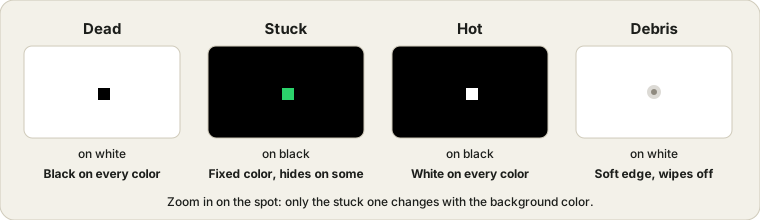
It is the same logic a repair bench uses, just written down. A pixel is three tiny colored dots (red, green, blue) lit by the panel behind them. If all three stay off, you get a black dot that is easy to see on white and invisible on black: a dead pixel. If all three stay on, you get a white dot that shows on black and disappears on white: a hot pixel. If only one color dot is stuck on, the spot has a color (say a green dot on black) and may vanish when the screen shows a color that already contains it. That is a stuck pixel.
Most people skip the first two questions, and they matter most. A speck of dust or a fiber under the glass can look exactly like a dead pixel from arm's length, and it wipes off or shifts when you tilt your head. A pressure mark from a laptop shut on a pen, or a phone pressed in a pocket, is a bigger, softer patch, not a dot. Those are different problems with different outcomes. Sending a dusty screen for a warranty claim wastes a week, and running a pixel fixer on pressure damage does nothing.
- Clean the screen first.
Dry microfiber, no spray, no pressure.
- Look at the spot on white, black, red, green and blue.
Use full screen, dim room, brightness up. Note what happens on each.
- Answer the five questions.
The fifth only appears if you saw a dark dot on white.
- Read the verdict and its next steps.
If it says to retest, do that before you contact anyone.
The limits are real. It cannot see your screen, so it is only as good as your eyes and the room you are sitting in. Browser zoom and display scaling can turn one pixel into a 2 by 2 block, which makes a dead pixel look bigger than it is. On OLED phones a black screen means the pixels are simply off, so a dead pixel will not show there at all; use white and colors. And a spot that appears only sometimes may be image retention or a loose display cable, which no color test will pin down.
The short answer
A dead pixel is a pixel that never lights up, so it stays black on every background. A stuck pixel is one where a sub-pixel is stuck on, so it shows a fixed color (red, green, blue or a mix) that stands out on a contrasting background. A hot pixel stays white on every color. Stuck pixels can sometimes be revived; dead pixels almost never can.
How to tell them apart in two minutes
Open the Dead Pixel Test and cycle through black, white, red, green and blue in full screen. Then compare what you see against the table.
| Type | On black | On white | On red, green, blue |
|---|---|---|---|
| Dead pixel | Invisible | Black dot | Black dot on every color |
| Stuck pixel | Colored dot | Usually hard to see | Visible on some colors, hidden on others |
| Hot pixel | White dot | Invisible | White dot on every color |
| Dust or debris | Can be seen from some angles, moves or disappears when you wipe the glass | ||
Do the check in a dim room with the screen at full brightness and the display cleaned with a soft, dry cloth. Many "dead pixels" turn out to be specks of dust on the surface.
Can it be fixed?
A stuck pixel is a sub-pixel that is receiving the wrong signal or is stuck in its on state. Flashing rapidly changing colors over the spot, as the Stuck Pixel Fixer does, helps some of them release; others do not respond. Results vary and there is no guarantee, so run it for a while, rest, then check again.
A dead pixel usually means the transistor behind it has failed. Software cannot repair that. Avoid pressing hard on the glass with a finger or tool: it can damage more pixels or the panel itself.
Warranty and returns
Manufacturers do not all treat pixel faults the same way. Many define how many bad pixels, and of which kind, are accepted before a panel counts as defective, and the numbers differ between brands and product lines. Check the pixel policy in your warranty or on the seller's page, test the screen as soon as you receive it, and keep a photo of the fault. When buying used, mention any pixel fault before you pay.
Frequently asked questions
Does the pixel fault identifier save or send my answers?
No. It runs in the page and works out the verdict from the options you pick. Nothing is saved in your browser or uploaded.
Can a stuck pixel fix itself?
Sometimes. Stuck pixels have been known to fade on their own after days or weeks, especially if the screen is left on and showing changing content. Plenty never do. If it bothers you, try the Stuck Pixel Fixer for a few minutes at a time and check again.
Is a bright or dark spot on my screen always a pixel fault?
No. Dust on the glass, a speck under the polarizer, a pressure mark from a bag or a finger, and a patch of uneven backlight can all look like a pixel from a normal distance. A real pixel fault is exactly one pixel (or one color dot inside it) in size and does not wipe off. The identifier asks about both for that reason.