
Burn-in or image retention? How to tell the difference
You notice a faint outline of a taskbar or a game HUD on a plain background. Is the screen ruined? Often not. There are two different things going on, one temporary and one permanent, and a simple test usually tells them apart.
Last updated: · By the ProDeviceTest editorial team
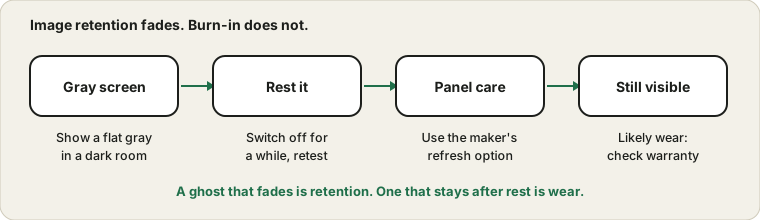
Two different problems
Image retention is temporary. The screen briefly keeps a faint trace of something that stayed still for a long time, and the trace fades after the display has shown other content or rested. Burn-in is lasting. The pixels that were used heavily have aged unevenly, so they now look dimmer or tinted compared with their neighbours, even when nothing is on screen.
OLED screens are the ones people mostly worry about, because each pixel makes its own light and can wear at its own pace. Other panel types can show retention too, though permanent damage is much rarer.
Test with a flat gray screen
Dim the room and open the Screen Uniformity Test. Show a mid-gray full screen and look for shapes that match things you leave on screen, such as a taskbar, a channel logo or a game map. Look at a few other colors too, because some ghosts show up better on one color than another. Take a photo if you want a record to compare in a month.
Do not judge from a bright room or at an angle. Reflections and viewing angle create patches that are not on the panel at all.
Give it a rest
If the ghost is faint, show varied moving content for some time, or switch the display off for several hours, then test again. Retention that is fading is good news. If it has not changed after a few rounds, it is more likely to be wear.
Use the maker's panel care
Many OLED monitors and TVs include a panel refresh or care function, sometimes running automatically after you turn the display off. Samsung's support pages describe their versions. Follow the maker's instructions rather than random videos, because some refresh cycles should not be run often. Using one does not promise a fix, and it is not something a website can do for you.
Reduce the risk
Hide the taskbar, use a dark theme where practical, let the screen sleep early, and avoid leaving a static picture at full brightness for hours. Moving windows around occasionally helps. None of this is dramatic, and normal use is fine, but a display used as a static dashboard for ten hours a day is a different story.
Warranty and buying used
Check your warranty terms, because makers treat burn-in differently and some exclude it. If you buy a used screen, test it with full-screen colors before paying; the used device checklist lists what to look at. A single bright or dark dot is a different issue, covered by the Stuck Pixel Fixer, and not retention.
If you see flicker instead of a ghost, see the flicker guide.
Sources and scope
Neither this guide nor a website can confirm permanent burn-in or repair it. Panel care options differ by maker and model, and warranty terms vary, so follow your own manual. The Samsung pages are examples from one maker.
Official documentation used for this guide:
Try it on ProDeviceTest
- Screen Uniformity Test — full-screen colors that reveal patches and ghost shapes
- Dead Pixel Test — separate fixed dots from a faded area
- Stuck Pixel Fixer — for single stuck pixels, not for burn-in
More guides: all ProDeviceTest guides