
Screen flickering: cable, driver or panel?
A flickering screen sends people straight to reinstalling graphics drivers. Sometimes that is right, but a two-minute check can tell you whether it is the driver, an app, the cable or the monitor itself, and save you the wrong repair.
Last updated: · By the ProDeviceTest editorial team
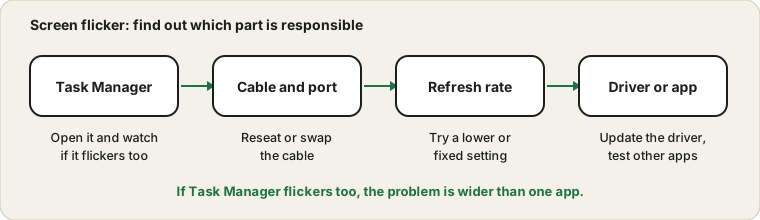
The Task Manager test
This is the check Microsoft recommends first. Open Task Manager and watch it while the screen flickers. If Task Manager flickers along with the rest of the screen, the cause is usually a display driver or the hardware. If Task Manager stays steady and only one program flickers, the fault belongs to that app, and updating or reinstalling it is the fix. It sounds almost too simple, but it saves hours.
Cable and port
A loose or aging cable is a classic source of intermittent flicker, particularly on an external monitor. Unplug both ends, look for bent pins, and plug them back firmly. If you have a spare cable or a second port, swap them. If the flicker is gone with a different cable, you have your answer without touching software.
Laptops add another clue: if the built-in screen is steady but the external one flickers, the problem sits in the cable, the port or the monitor, not in the laptop's graphics.
Refresh rate settings
Open display settings and look at the refresh rate. A mismatch between what the monitor expects and what the computer sends can cause flicker or blinking. Try a fixed rate that the monitor supports, such as 60 Hz, and see if it settles. The Refresh Rate Test shows what your browser detects, and the refresh rate guide explains how to read it.
If the flicker only appears with variable refresh rate on, in dark scenes or loading screens, some panels are known to be sensitive to it. Turning that option off to test is harmless.
Driver and updates
If Task Manager flickered, update the graphics driver from the maker of your graphics chip or your laptop, or roll back if the flicker started after an update. Be methodical: change one thing, then watch for several minutes. Microsoft's guide to screen flickering lists the driver steps.
Flicker you can only feel
Some screens dim by switching the backlight on and off very fast at low brightness. Most people do not see it, but some feel eye strain. If that sounds like you, raising brightness and lowering room light can help, and the monitor's manual may list a flicker-free mode. A browser test cannot measure this, so do not treat a clean test as proof the panel is flicker-free.
When it is the monitor
If a different cable, a different computer and a fixed refresh rate all show the same flicker, the monitor itself is the likely cause, and warranty is the next step. Also look at burn-in and image retention in case a faint ghost is what you are seeing, and washed-out colors if the picture has other problems.
Sources and scope
These checks sort out common causes. A browser test cannot measure backlight flicker, so a clean result does not prove a panel is flicker-free, and a failing monitor may still need repair.
Official documentation used for this guide:
Try it on ProDeviceTest
- Refresh Rate Test — check the rate the browser sees and spot instability
- Frame Skipping Test — tells stutter from true flicker
- Ghosting Test — for trails and smearing that can look similar
More guides: all ProDeviceTest guides