
Washed-out colors on a monitor: four settings to check first
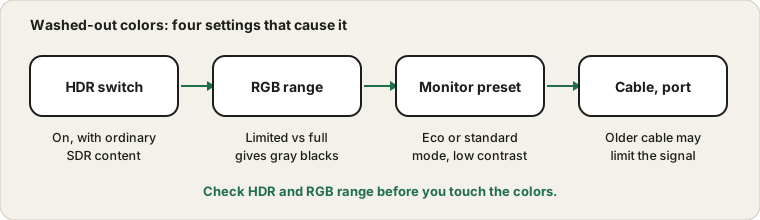
The picture is pale, blacks look gray and everything seems slightly foggy. It is tempting to think the monitor is dying. In most cases the panel is fine and one of four settings has drifted, usually after a driver update or a cable change.
Last updated: · By the ProDeviceTest editorial team
The HDR switch
When Windows runs HDR mode, ordinary content is mapped into a wider range, and that can look flat and pale on a monitor that handles HDR poorly. If colors got worse after you turned HDR on, switch it off in display settings and compare. Microsoft's HDR page explains the options, including a brightness balance for ordinary content. HDR is only worth it with an HDR-capable screen and HDR content.
The HDR Test shows what your browser reports.
Limited versus full RGB range
Digital video has two ways of using the numbers for brightness. Full range uses all of them, limited range leaves the top and bottom unused. If the computer sends one and the monitor expects the other, blacks turn gray, or shadow detail gets crushed. The setting lives in the graphics control panel or in the monitor's menu, often under names such as HDMI black level. Match both ends and the grays should drop to true black.
Monitor presets
Most monitors have modes such as eco, reading, movie and standard. Some lower the contrast or add a color cast. Reset the monitor to factory defaults, then raise brightness and contrast moderately. It is surprising how often a power-saving mode is the whole story.
Cable, port and adapters
An old cable or a cheap adapter can limit the signal. Try a different port, such as DisplayPort instead of HDMI, or a newer cable. If the picture changes with the cable, you have found the cause.
Test what you see
Open the Gradient Test. A smooth ramp from black to white shows a healthy range. Steps or bands suggest limited range or a low-bit signal. On a dark screen, glow at the edges is backlight bleed, which is a different thing and is covered by the Backlight Bleed Test.
Calibration, with realistic expectations
Windows has a calibration tool for color and for HDR, and it helps on many displays. It will not turn a cheap panel into an expensive one. If the picture still looks wrong on several computers, the monitor is the limit. For other display faults, see the flicker guide and the burn-in guide.
Sources and scope
Menu names follow current Windows and vary by graphics driver and monitor maker. Browser tests show what you can see on your screen, not a measured colour accuracy.
Official documentation used for this guide:
Try it on ProDeviceTest
- HDR Test — check what your browser and screen report about HDR
- Gradient Test — reveals banding and limited range
- Backlight Bleed Test — a dark screen to check black level and glow
More guides: all ProDeviceTest guides