
Ghost touches and an unresponsive screen: causes and fixes
A phone that opens apps on its own, types letters nobody pressed, or ignores a finger in one corner is maddening. These problems have a surprisingly long list of causes, and most of them are cheap to check before you think about a repair.
Last updated: · By the ProDeviceTest editorial team
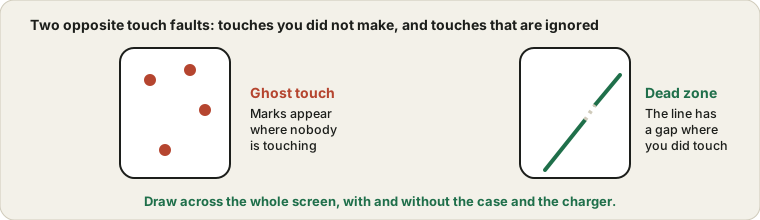
Two different problems
People use "touch screen problems" for two opposite things. A ghost touch means the screen registers touches you did not make. A dead zone means touches you did make are ignored. They have overlapping causes, but separating them helps, because it tells you where to look.
The cheap causes, in order of how often they turn out to be it
- The screen protector or case.
A protector with bubbles, a lifting edge or a thick cheap layer can confuse the sensor. A case that presses on the screen edge makes constant contact. Remove both and test.
- A dirty or wet screen.
Sweat, rain, a damp hand or a greasy film all change how the screen reads touch. Wipe the screen with a slightly damp soft cloth and dry it properly.
- The charger.
Some cheap or damaged chargers add electrical noise that the screen mistakes for touch, so the problem appears only while charging. Try the original charger and cable.
- Temperature.
Screens can behave oddly in the cold or after being left in a hot car. Let the phone return to room temperature.
- Software.
A bug or a stuck app may be the cause. A restart and an update are worth doing before anything else.
See it instead of guessing
Open the Touch Screen Test and run a finger across the whole screen, paying attention to the corners and edges. Dead zones show up as gaps in the lines, and ghost touches show up as marks appearing where nobody is touching. If you want to check how many fingers the screen can follow at once, the Multi-Touch Test shows that too.
Run the test twice, once with the case and protector on and once with them off, and once with the charger in and once without. If the result changes, you have found the culprit.
Software steps before a repair
Restart the phone first. Then install any waiting system update. On Android, safe mode turns off the apps you installed, so if the problem disappears there, an app is to blame and you can remove the recent ones one by one. If it persists, resetting the settings, which is different from erasing the phone, is the next step. Back up your data before any bigger reset. Resetting the whole phone should come last, and only if the symptoms look software related.
When it points to the hardware
A crack, even a tiny one, can ruin a screen in one area. So can a drop that did not leave a visible mark, or water that got inside. If the problem is always in the same spot, appears only after an impact, or comes with colour lines or flicker, the digitiser or the display is likely damaged. At that point software steps will not help.
Repair or live with it?
If water was involved, the wet speaker guide covers the rest of the phone. A mild problem that you can work around, such as a dead strip at the very edge, may not justify the price of a new screen on an older phone. A problem that makes the phone unreliable, such as random calls and purchases, does. Get a quote first, and ask whether the price includes the glass or only the digitiser. And if you are buying a used phone, run the touch test before paying. It takes a minute and it is far cheaper than a repair.
Quick questions
Will a factory reset fix ghost touches?
Only if the cause is software. If it is hardware, the problem comes straight back, so test the screen right after the reset, before you restore your apps and data.
Is a ghost touch dangerous?
It will not hurt you, but it can open links or send messages while you are not looking. Keep a screen lock on, and consider turning the phone off until it is fixed if it behaves wildly.
Try it on ProDeviceTest
- Touch Screen Test — draw on the screen and see where every touch lands
- Multi-Touch Test — check how many fingers your screen can track
- Vibration Test — another quick hardware check for phones
More guides: all ProDeviceTest guides