
Keyboard keys not working? What to try, in order
A keyboard that half-works is more annoying than one that is completely dead, because you never know what is going to go wrong next. The good news is that the pattern of the failure tells you a lot about the cause. Look at the pattern first, then work through the fixes from cheapest to most drastic.
Last updated: · By the ProDeviceTest editorial team
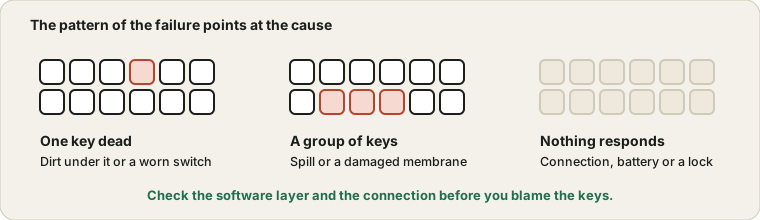
Start by looking at the pattern
Before you change anything, spend thirty seconds noticing what exactly is wrong, because each pattern has a different usual suspect.
- One key is dead, the rest are fine. Dirt under the key, a worn switch, or on a laptop a single failed contact.
- A group of neighbouring keys fails. Often a spill, a damaged part of the membrane, or a stuck key that blocks others.
- Nothing works at all. Almost always the connection, a battery, or a software lock rather than the keys.
- Keys type the wrong character. The layout or a language setting has changed, or Num Lock or the Fn lock is on.
- One key types twice. A worn switch, sometimes called chatter, and it tends to get worse over time.
Rule out the software layer
Restart first. It sounds lazy, but a restart clears stuck modifier keys and stalled drivers. Then try the keyboard in a different program, or on the login screen, to see whether it is one app misbehaving.
If symbols come out wrong, check the input language. On Windows, the shortcut Windows key plus Space switches layouts, and it is easy to hit by accident. Check Num Lock on a keyboard with a number pad, and the Fn lock on laptops, where the whole top row can suddenly act as media keys.
Accessibility features can also change behaviour. Sticky Keys, Filter Keys on Windows and Slow Keys on a Mac are all designed to ignore short or repeated presses, and they can make a perfectly healthy keyboard seem sluggish. They are usually switched on by holding Shift for a long time or pressing it five times in a row.
Test every key, not just the ones that annoy you
Open the Keyboard Test and press each key. Keys light up as they register, so you quickly see the full list of failures instead of the one you happened to notice. Also try pressing two or three keys together. A keyboard that registers single keys but misses combinations has a different kind of fault from one with a dead key.
Dirt and crumbs
For an external keyboard, unplug it, turn it upside down and give it a gentle shake. Short bursts of compressed air between the keys do a good job after that. On a mechanical keyboard you can pull off a keycap with a keycap puller, clean underneath and put it back. Take a photo of the layout before you remove several keys, so you remember where everything goes.
On a laptop, be much gentler. Many laptop keys sit on tiny clips that break if you pry them up. Use air or a soft brush and leave the keys on unless you know your model's design.
If something got spilled
Speed matters more than technique. Switch the device off straight away, unplug it, and tip it so the liquid drains out of the keyboard instead of into the electronics. Do not use a hairdryer on a hot setting, and do not rely on rice, because neither does anything useful.
Water usually does little harm once it has dried. Sugary or milky drinks are the real problem, because they leave sticky residue that keeps keys from springing back and can corrode contacts. With a laptop, power it down and take it for a service rather than trying again and again. With an external keyboard, a gentle clean and a long drying time may save it, but a cheap keyboard is often not worth the effort.
Connection problems
If nothing registers, start with the boring stuff. For a wired keyboard, try another USB port, and plug it in directly rather than through a hub. For a wireless one, replace the batteries, move the receiver closer, and re-pair a Bluetooth keyboard from scratch by removing it from the devices list and adding it again. If an external keyboard works on another computer but not on yours, the issue is on your computer's side.
A laptop whose whole keyboard dies suddenly, while an external keyboard works fine, may have a loose ribbon cable inside. That is a job for a technician, and it is usually inexpensive.
Repair or replace?
If you are looking at a used laptop, test every key before you pay, and add it to the used device checklist. For a cheap external keyboard, replace it. The time you spend diagnosing a ten-dollar keyboard is worth more than the keyboard. For a mechanical keyboard, individual switches can often be swapped if the board allows it, and that is cheaper than a new one. For a laptop, a replacement keyboard is a common and often reasonable repair, but prices vary a lot between models, so ask for a quote before deciding.
While you wait, a spare USB keyboard keeps you working. It also helps with diagnosis, because if the laptop's own keys fail and the external one works perfectly, you know the issue is the hardware inside rather than the software.
Try it on ProDeviceTest
- Keyboard Test — press every key and see which ones register
- Mouse Test — if the mouse misbehaves as well, it points to the port or the computer
- All Device Tests — the whole category in one place
More guides: all ProDeviceTest guides