
How to check your mic before an important call
Nobody remembers the calls where the audio was fine. Everybody remembers the interview that began with five minutes of "can you hear me?". A short routine, done a quarter of an hour early, prevents almost all of that.
Last updated: · By the ProDeviceTest editorial team
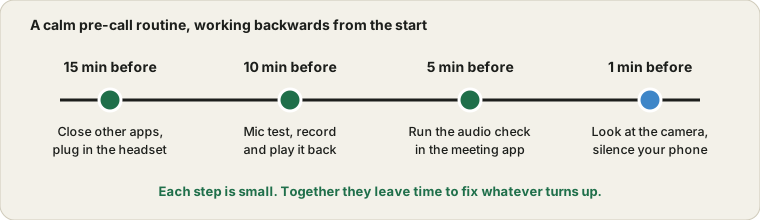
Start fifteen minutes early, not one
If something does turn out to be wrong, the guide to finding where the sound gets lost is the next stop. Joining a call with a minute to spare leaves no time to fix anything. Here is a rhythm that works for interviews and client meetings alike.
- Fifteen minutes before: tidy up.
Close other programs and browser tabs, especially other meeting tools that might grab the mic. Plug in your headset and charge it if it is wireless.
- Ten minutes before: test the mic.
Open the Mic Test, speak in your normal voice and watch the level. Record a short clip and play it back.
- Five minutes before: test inside the meeting app.
Most tools have an audio check in the settings. Pick the microphone and speakers by name and run it.
- One minute before: look at yourself.
Check the camera, your lighting, and that your phone is silenced. If the picture is black, see the webcam checklist.
Listen to the recording, not just the meter
A moving level bar tells you that sound is arriving. It does not tell you how it sounds. So record ten seconds, say something you would actually say in the meeting, and play it back. Use headphones for the playback, otherwise your speakers will feed back into the mic.
When you listen, you are hunting for a handful of things. Hiss or a steady hum usually means a fan, an air conditioner or a poor cable. A hollow, echoing sound means the room is too bare. Harsh pops on the letters p and b mean you are too close or speaking straight into the capsule. Crunchy, distorted loud parts mean the level is too high. And a faint, far-away voice means you are too far away or the input level is too low.
Distance and position matter more than price
People spend money on microphones and then talk into them from the wrong place. As a rough guide, a headset boom should sit about two fingers from the corner of your mouth, not in front of it where your breath hits it. A desktop USB mic works well at about a hand span away. A laptop's built-in mic is the weakest option and needs you to sit at normal arm's length, facing it, with nothing like a mug or a stack of papers in the way.
Whatever you use, keep that distance the same during the call. It sounds trivial, but constant distance keeps the volume even and saves you from leaning in whenever you get excited.
Your room is part of the microphone
A bare room with hard walls adds echo that no setting can remove. You do not need studio foam. Sitting where there is a curtain, a bookshelf or a sofa behind or beside you helps, and so does a rug on a hard floor. Close the window if traffic is loud, and move the computer fan away from the mic if you can. If you have a choice between two rooms, clap once in each and use the one that sounds deader.
Settings that help, and ones that bite
Most meeting apps offer noise suppression, automatic volume and echo cancellation. For a spoken meeting leave them on automatic, because they do a good job on keyboard noise and fans. They are the wrong choice when you want to play an instrument or share music, where suppression will chop notes off.
Be wary of Bluetooth earbuds for important calls. Their microphone often sounds thin, and the connection can switch quality in the middle of a sentence. A wired headset costs little and is far more predictable.
Have a plan B ready
Even a perfect check cannot promise a perfect call. Keep a phone number or dial-in link for the meeting if there is one. Log in on a second device, such as a phone, with its sound muted, so you can switch if the main computer fails. Know where the chat box is, so you can type a short message if your audio drops. And keep the host's number to hand, which is useful for interviews especially.
Afterwards, remember what worked
If someone tells you that you sounded great, that is data. Note which headset, which room and which settings you used, and reuse them. If they tell you that you sounded bad, run the same test again and compare. Fixing an audio problem is much easier when you know what the good version sounded like.
Try it on ProDeviceTest
- Mic Test — record a few seconds and play them back with headphones on
- Webcam Test — check your camera and the light on your face in the same sitting
- Sound Test — make sure you can hear them properly too
More guides: all ProDeviceTest guides