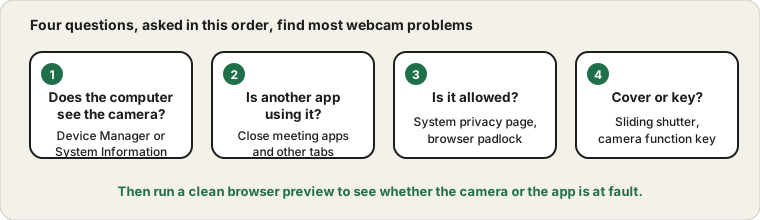
Question 1: can the computer see the camera at all?
Everything else depends on this. On Windows, open Device Manager and look for the camera under "Cameras" or "Imaging devices". On a Mac, open System Information and check the Camera entry. If nothing is listed for a USB webcam, the cable, port or camera is at fault, so try another port and a different cable before anything else. If it is a laptop's built-in camera and it is missing from the list, a restart is worth a try, and after that a driver check.
A tip that costs nothing: plug an external webcam straight into the computer, not into a hub or a monitor's USB port, which may not give the camera enough power.
Question 2: is something else already using it?
On most systems only one program can use the camera at a time. If a meeting app from yesterday is still running in the background, or a browser tab has the camera open, the next program sees a black picture or an error that the camera is busy. Close other meeting apps, other browser tabs and anything like a video recorder, then try again.
Look at the camera's light too. If the light is on while no call is running, some program is holding the camera, and a restart will free it.
Question 3: is permission blocking it?
Both the system and the app need permission. In Windows the Camera switch is under Privacy and security, with a separate switch for desktop apps. On a Mac, Privacy and Security lists every app that asked for the camera. In a browser, click the padlock beside the address bar and check that the camera is allowed for that site. If you once pressed Block by accident, the browser will not ask again until you change it.
Many work computers also have a policy that disables the camera, and no setting you change will override it. In that case you need to talk to the IT department.
Question 4: is it a physical or a setting problem?
Look at the obvious, which is surprisingly often the answer. Many laptops and webcams have a little sliding cover for privacy, and a lot of people forget they closed it. Some laptops also have a function key that turns the camera off, with a small camera icon on it. If the preview is dark rather than black, check your room light, because many webcams struggle in dim rooms and the picture can look nearly black.
The three-minute swap test
When the answers do not settle it, test by changing one thing at a time. Open the Webcam Test in your browser, which shows the camera in a clean environment without any meeting app on top. If the picture appears there, the camera is fine and the trouble sits in your meeting app, so choose the camera by name in its video settings. If the picture does not appear, test the camera on another computer. If it works there, the problem is in your computer's settings or drivers. If it fails there too, the camera is the problem.
If it works, but looks poor
A low frame rate or a grainy picture usually points to light. Put a lamp in front of you, not behind you, and turn on the room light if you are in a dim place. Open the camera's own settings in your meeting app too, because some turn on automatic adjustments that make things worse. And wipe the lens, since a fingerprint makes the picture hazy in a way that nothing else will fix.
Before an important meeting
The same applies to sound, so run through the mic routine for important calls at the same time, and use the mic guide if it fails. Check the camera when you are not under pressure, ideally the day before. Then test again a few minutes before the call. It takes about a minute and spares you the scramble. Remember also what your background looks like, since the camera will show it.
Quick questions
Why is my picture mirrored?
Many apps flip the preview so it behaves like a mirror, which feels natural. The other people usually see the correct, unflipped picture. Check the app's video settings if text on your shirt looks backwards to you.
Does the camera light always show when the camera is on?
On many devices the light is wired to the camera, but designs differ, so do not treat it as the only signal. If privacy matters, a sliding cover is a cheap and sensible habit.