
Microphone not working? Find where the sound gets lost
When a mic goes quiet, most people start reinstalling drivers. Don't. Between your mouth and the other person's ears the sound passes through four stops, and it is lost at only one of them. Find that stop and the fix is usually a single click.
Last updated: · By the ProDeviceTest editorial team
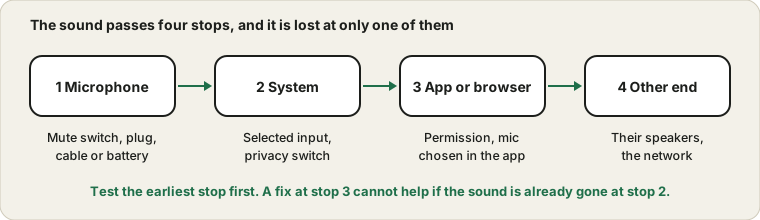
The four places a mic can fail
Think of the signal as a short journey. It leaves your voice, passes through the microphone, reaches the operating system, gets handed to a browser or app, and finally travels over the internet to somebody else. A fault at any stop looks the same from the outside: "I can't hear you."
- The microphone itself.
A mute switch, a loose plug, a dead battery or a cable that has finally given up.
- The operating system.
The wrong device selected, the input level at zero, or a privacy switch that blocks all microphones.
- The app or browser.
No permission yet, or the app is listening to a different microphone than the one you are talking into.
- The other end.
Their speakers are muted, or the call service is having a bad day. Rare, but it happens.
The trick is to test the earliest stop first. If the sound is already missing at stop two, nothing you change at stop three can help.
Two minutes of boring checks
These sound too simple to matter, and they fix a surprising share of cases. Look for a mute slider or button on the headset cable, and a mute key on the keyboard (many laptops have one on the F-row). Push USB plugs in all the way, then try a different port. If the mic is Bluetooth, make sure it is actually connected and not just paired.
One quirk catches people with wired headsets. A headset with a single plug that carries both sound and mic only works in a matching combined jack. On a desktop with two separate sockets, a pink one for the mic and a green one for headphones, that single plug gives you sound but no mic, and you need a small splitter adapter.
Bluetooth has its own trap. When the mic switches on, many headsets drop into a low quality call mode and your music suddenly sounds like it is coming through a tin can. That is normal behaviour, not a fault, though it is a good reason to use a wired headset for important calls.
Then the operating system
Two settings cause most of the trouble here, so check only these before going deeper.
The selected input. On Windows, open Settings, then System, then Sound, and look under Input. On a Mac it is System Settings, then Sound, then Input. Speak and watch the level bar. If it stays flat, pick another device from the list. New devices have a habit of quietly becoming the default, including webcams, monitors with speakers, and Bluetooth earbuds you used yesterday.
The privacy switch. Both Windows and macOS have a microphone privacy page, and both can block an app entirely. On Windows it sits under Privacy and security, then Microphone. On a Mac it is under Privacy and Security, then Microphone, where each app gets its own toggle. If an app you just installed is missing from that list, it has not asked yet, so open it and trigger the mic once.
Is it the mic, or just the app?
This is the question that saves the most time. Open the Mic Test in your browser, allow the microphone, and talk. A moving waveform means the mic and the system are fine, so your problem sits in the call app. A flat line means the sound is lost earlier, at stops one or two.
Once it works again, the routine in how to check your mic before a call keeps it that way. If the browser hears you but the call app does not, open that app's audio settings and choose the microphone by name instead of leaving it on "Default" or "Same as system". Apps remember a device that you have since unplugged, and they do not always fall back gracefully. Restarting the app after you change devices sorts out a lot of strange behaviour too.
Another app may be holding the mic
Some programs grab the microphone and refuse to share it, especially audio editors and games with built-in voice chat. On Windows there is a setting that makes this more likely: in the classic sound panel, open the microphone's properties, go to Advanced, and look at "Allow applications to take exclusive control of this device". Unticking it lets several programs listen at once.
Before touching that, simply close everything that might be using the mic, including the browser tab from last week's meeting. Then try again.
It worked yesterday. What changed?
That sentence usually points at one of three culprits. A system update may have switched a privacy setting back. A new device may have taken over as the default input. Or a pair of wireless earbuds reconnected itself to your computer from across the room and started acting as your microphone, which is a classic one if you share a desk with a charging case.
Look at the list of input devices and ask which ones you do not recognise. Unplugging or disconnecting what you are not using makes the picture clearer.
When it really is the hardware
To confirm, try the mic on a different computer or a phone. If it is silent everywhere, the problem is the mic or its cable. Try a different cable first if the mic has a removable one, since cables fail more often than microphones do.
For a cheap headset, replacing it is nearly always more sensible than repairing it. For a good USB or XLR microphone, check the warranty before anything else. If the camera on the same device is also dead, the webcam checklist covers it. And if the built-in mic of a laptop is dead while an external one works, you can carry on with the external one while you decide whether the repair is worth it.
If you need to ask for help
Support teams answer faster when you give them facts instead of "it doesn't work". Tell them the device and operating system, whether the browser test shows a moving waveform, whether you tried another computer, and what changed recently. Four lines like that save a round of back and forth.
Try it on ProDeviceTest
- Mic Test — see a live waveform and know in seconds whether sound is arriving
- Webcam Test — handy when the mic is built into your camera
- Sound Test — check the other direction, your speakers and headphones
More guides: all ProDeviceTest guides