Is your monitor really running at its refresh rate?
A lot of people buy a 144 Hz or 165 Hz monitor, plug it in, and never find out that it is quietly running at 60 Hz. The box promised a lot, the picture looks fine, and nothing warns you. Here is how to find out what you are really getting, and what usually holds it back.
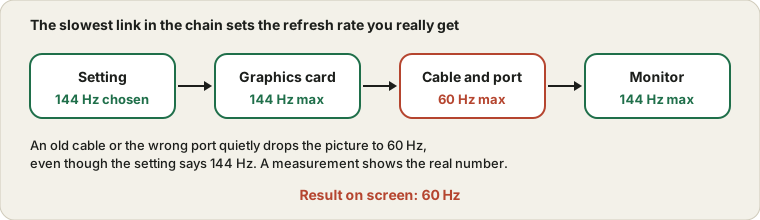
The weakest link in the chain sets the rate you actually get.
Why many new monitors sit at 60 Hz
Monitors do not always ship in their fastest mode. When you connect one, the computer asks it which modes it supports and picks a safe default, and that default is very often 60 Hz. The faster rate is available, but you have to switch it on yourself. Think of it as buying a car with a limiter still fitted.
So the first question is not "is my monitor broken?". It is "did I ever select the higher rate?".
Look at the setting, then at the measurement
On Windows, open Settings, then System, then Display, then Advanced display, and use the menu called "Choose a refresh rate". On a Mac, look in System Settings under Displays for the Refresh Rate menu. If the higher rate is not in the list at all, the problem is further up the chain, which the next sections cover.
Selecting a rate is a request, not proof. To see what the screen really delivers, run the Refresh Rate Test. It measures how often the browser can draw a new frame on your display, so it shows the result of the whole chain, including the cable, the graphics settings and the power mode. If the setting says 144 and the test says 60, something between them is limiting you.
The cable and the port decide more than you think
Every video connection has a limit on how much picture data it can carry, and that limit is lower for older versions. At a basic resolution an old cable may be fine. As soon as you raise the resolution or the refresh rate, the same cable can fall over and the computer drops back to 60 Hz without telling you.
A few habits help. Use the cable that came with the monitor if it came with one. For high refresh rates, DisplayPort is usually the safer choice than HDMI, unless your monitor and graphics card both clearly support a recent HDMI version. And check the manual for a detail that surprises people: some monitors only support their top refresh rate on one particular port.
Plug into the graphics card, not the motherboard
On a desktop PC with a separate graphics card, the video sockets on the back of the motherboard are connected to the processor's built-in graphics, not to your card. If you plug the monitor in there, you may be running on the weak graphics and the fancy card sits idle. Look for the sockets lower down on the back of the case, on the card itself.
Laptops and phones lower the rate to save power
Many laptops and phones deliberately drop their refresh rate when you switch on battery saver, or when they are unplugged, because a fast screen drains the battery. If a laptop reports 60 Hz away from the charger and 144 Hz when plugged in, that is a power setting, not a defect.
Phones add a twist. Many modern ones use an adaptive rate that changes between a low number and the maximum depending on what is on screen. That is why a still page can read low in a test while scrolling reaches the top rate. Run the test on something that moves.
Graphics settings and drivers
Open the control panel of your graphics driver and check that the display is set to its highest rate there too. An outdated driver or a custom resolution you made years ago can cap the options. Updating the driver is a reasonable step if the higher rate is missing from the list and the cable is good.
Refresh rate is not the same as fps
A 144 Hz monitor can only show 144 frames a second if the computer actually produces that many. A game running at 60 frames per second on a 144 Hz screen is still limited to 60 different pictures, and some of them are simply shown twice. If the screen is set correctly but the game feels slow, look at the frame rate in the game and the graphics settings, not the monitor.
Will you notice the difference?
If a new monitor shows a stuck dot as well as the wrong rate, read dead pixel vs stuck pixel, and run the rest of the used device checklist before the return window closes. Most people notice the difference when they compare directly. Scrolling a web page, dragging a window or moving the mouse pointer looks noticeably smoother at 120 Hz or above. In fast games the difference is clear for those who play a lot. For office work and video the gain is small. Either way, if you paid for the higher number, you should get it, and ten minutes of checking is enough to find out.