Distorted or crackly mic: clipping, boost or a bad setting?
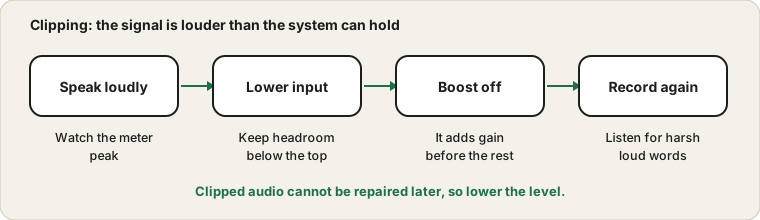
Your voice sounds harsh, buzzy or crackly, especially when you laugh or raise your voice. That is very often clipping: the signal is louder than the system can hold, so the tops of the waves get cut off. It is a level problem, not a broken mic, and it is usually easy to fix.
If the meter hits the top on loud words, lower the input level.
What clipping looks and sounds like
Digital audio has a hard ceiling. A level of zero on a digital meter is the loudest value that can be stored. If your voice or the boost pushes the signal past that, the peaks are flattened and the sound turns harsh. It tends to appear on loud syllables, plosive sounds like p and b, and laughter, while quiet speech sounds fine.
Open the Mic Test and say a sentence the way you would in an excited moment. If the meter reaches the very top and stays there, you are clipping.
What clipping sounds like compared with other faults
Sound
Likely cause
How to tell
Harsh, buzzy loud words
Clipping
Meter hits the top on loud speech
Constant light crackle
Loose connection or driver issue
Present even on quiet speech
Steady hiss
High gain
Present between words
Thump on p and b
Plosives
Improves when you angle the microphone
Rattling or fuzz at high volume only
Speaker overload
Heard on playback only
Thin, metallic tone
Heavy processing or a weak microphone
Changes when enhancements are off
Identifying clipping correctly saves you from changing drivers when a level change is all you need.
Lower the input volume
The first fix is to reduce the microphone's input volume in the sound settings until loud speech stays below the top of the meter, with a little room to spare. Your normal voice may then look a bit lower, but clean audio can always be raised later, while clipped audio cannot be repaired. If the result is now too quiet, read the quiet microphone guide to raise it with distance instead.
Finding the right amount of headroom
Headroom is the space between your usual level and the top of the meter. A good target is to have normal speech land around the middle, and your loudest moments peak somewhere in the upper part without touching the top. That gives you room for laughter, excitement or someone leaning in. If your normal voice already reaches the top, you have no headroom, and every louder moment is clipped.
To find your level, speak at your normal volume, then say a loud sentence the way you would when surprised. Adjust the input level until the loud sentence stays below the top. Then check that your normal speech is still clearly visible. If it looks too small, move closer instead of raising the level.
Gain controls on the device itself
Many USB microphones and audio interfaces have a gain knob or a switch on the device. This control comes before anything in the computer, so if it is too high the signal clips before the system can help. If you have lowered the system level and the clipping continues, check the gain control on the device and bring it down. Some microphones also have a pad switch, which cuts the level for loud sources. Setting the device gain first and the system level second is the most reliable order.
Several processors in a row
Clipping can also hide in a chain of processing. A microphone with its own gain feeds an audio interface, which feeds the system, which feeds an app that applies its own gain and compression. Each stage can overload if the one before it is set high. If you are not sure where the clipping starts, set every stage to a modest level, record, and raise each one slowly while watching the meter, so that you can see which control makes the peaks jump.
Keep notes on the settings that work, so that you can return to them after an update or a change of device.
Planning for the loud moments
Most clipping happens during moments you did not plan for: a sudden laugh, a cough, a shout at a game. If your work includes such moments, give yourself extra headroom, even if it means a slightly lower normal level. Calls tolerate a quiet voice better than a distorted one, and the other person can turn their volume up. Recordings are less forgiving, so test with your loudest expected sound before you begin.
Turn boost off or down
A boost option in the microphone properties adds gain in front of everything else. On a mic that is already fairly loud, boost can push peaks over the edge. Switch it off, test again, and only bring it back if you really need it.
A steady order for removing clipping
Open the Mic Test and speak a loud sentence while watching the meter.
Lower the input level in the system settings until the peaks stay below the top.
Turn off boost and test again.
Check the app's own input slider and automatic gain.
Move the microphone slightly farther away and angle it off axis.
Record a clip with the Voice Recorder and listen on headphones.
Repeat with a shout or a laugh to confirm the peaks stay clean.
Once the settings are right, leave them alone. Changing them mid-session makes recordings uneven.
Watch distance and plosives
A mic held very close to your lips overloads easily and catches bursts of air. Move it back a little, aim it slightly off to the side and consider a foam or pop cover. Speaking across the mic rather than straight into it reduces the thump on p and b sounds.
Plosives, breath and mouth sounds
Some harshness comes from bursts of air on p, b and t sounds, called plosives. They overload the microphone for a moment and sound like a thump or a pop. Angle the microphone slightly off to the side, move it a little farther away or add a pop filter or foam cover. Speaking across the microphone rather than directly at it reduces the burst. Drinking water before long sessions also reduces mouth clicks, which can sound like crackle when the microphone is close.
Different situations, different risks
Situation
Clipping risk
What helps
Quiet call at a desk
Low
Normal settings are fine
Excited conversation or gaming
High
Leave extra headroom
Singing or playing an instrument
High
Lower the level and move away
Recording a voiceover
Medium
Test with the loudest line first
Shouting near the microphone
Very high
Move back and lower the level
Wind or breath bursts
Medium
Use a pop filter or angle the mic
Think about the loudest thing you are likely to do. Set the level for that moment, not for the quiet one.
Check the sample rate and enhancements
In the device properties on Windows, the Advanced tab shows a default format. A mismatch between the device and the app, or a driver enhancement, can add buzz or crackle that is not clipping at all. Set a standard format, turn enhancements off for a test and record again. If the crackle disappears, the enhancement or the format was the cause.
When the harsh sound is not clipping
If the meter stays well below the top and the sound is still harsh, look elsewhere. A driver enhancement may add processing that creates a harsh tone. A sample rate mismatch between the device and the app can cause buzzing. A damaged cable or a poor connection can produce crackle, as can a faulty USB port. An app that applies aggressive noise reduction can make a voice sound metallic.
To find out, try a different app, a different port and a different microphone. If the sound improves with a different app, the first app's processing is the cause. If it improves with a different port, the port or cable is the cause. If it does not improve with anything, the microphone itself may be at fault, and a warranty check is sensible.
A safe level for different jobs
Different uses call for different headroom. For calls, a level where normal speech sits in the middle is fine, because the app applies its own gain. For recording, you want more safety, so that an unexpected loud moment does not ruin a take. A good habit is to record a short test with the loudest line you expect, and check that the peak stays below the top. If you are unsure, lower the level a little more. A slightly quiet recording can be raised later, and a clipped one cannot be saved.
If it still crackles
Try a different USB port, a different cable and a different app. Crackle that follows the mic points to the mic or its cable. Crackle that appears only in one app points to that app's settings. If the harsh sound is only in what you hear, not what is recorded, the speaker side may be at fault. Run a sound test and read the speaker crackle guide.
Questions people ask most
Can I fix clipped audio later? Not really. Once the peaks are cut off, the information is gone, so fix the level at the source.
Is a quiet recording better than a loud one? A clean quiet recording can be raised safely, while a clipped loud one cannot be repaired.
Do USB microphones clip easily? They can, especially at a high gain setting, so check the gain control on the device too.
What if it only crackles in calls? The call app may apply processing. Compare with a local recording, as the dropouts guide suggests.
What if my level is too low afterwards? See the quiet microphone guide for distance and the right order of fixes.
Sources and scope
Clipping is one cause of a harsh mic. Driver problems, a damaged cable and playback faults can sound similar, so the steps are an order to check in, not a diagnosis.