
Speakers crackling or popping: find where the noise starts
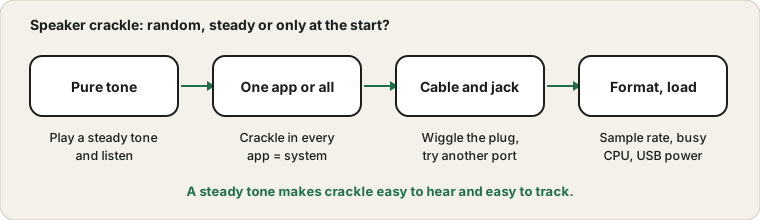
Crackle is one of the more annoying audio faults because it comes and goes. The trick is to make it happen on demand. Once you can reproduce it with a steady tone, each small change either cures it or does not, and the cause stops being a mystery.
Last updated: · By the ProDeviceTest editorial team
Name the sound
Different noises have different causes, so it helps to describe yours. Random crackling is often a loose connection or an overloaded system. A single pop when sound starts or stops is usually the audio hardware waking up or switching off. A steady hum that never changes comes from wiring and power, not from the audio signal. A buzz that follows the mouse or screen is interference from a nearby device.
Play a steady tone
Music hides crackle. A plain tone does not. Open the Tone Generator, play a gentle 440 Hz tone at a low volume, and listen. Crackles, clicks and dropouts stand out against a steady note. Keep the volume low, and stop the tone if it hurts. This gives you a repeatable test for everything that follows.
One app, or everything?
Play the tone, then a video, then a song in another app. If the crackle appears everywhere, the cause is in the system or the hardware. If it only appears in one app, the cause is that app's audio settings or the stream it is playing. That one question cuts the search in half.
Cables, jacks and ports
Wiggle the plug gently while the tone plays. If the crackle changes, you have found a worn jack or a damaged cable. Try another port and another cable. For USB audio, a different USB port can matter, because a crowded hub sometimes cannot deliver clean power.
Check also that the cable is fully seated. A plug that is almost in gives an intermittent connection.
Format, drivers and load
On Windows, the default audio format sets the sample rate and bit depth. A mismatch can give crackle, so try the other options in the device properties and test again. Microsoft's guide to distorted or crackling audio walks through these. A busy processor can also starve the audio stream, which shows as stutter and crackle when many programs run. Close heavy apps and test.
Wireless and interference
If the speakers or headphones are wireless, move closer, avoid other busy Bluetooth devices and test with a cable if you can. Wireless dropouts sound like short gaps and crackle, and are not a sign of a broken speaker. See Bluetooth audio delay for how the wireless link behaves.
If one side is silent instead, the one-side-silent guide is the better fit.
Sources and scope
This guide describes common causes of crackle. A test tone helps you hear a fault, but it cannot diagnose a damaged speaker, and Windows menu names differ between versions.
Official documentation used for this guide:
Try it on ProDeviceTest
- Tone Generator — a steady tone makes crackle obvious
- Sound Test — check each channel and the left-right balance
- Speaker Cleaner — can help clear dust from a phone speaker
More guides: all ProDeviceTest guides