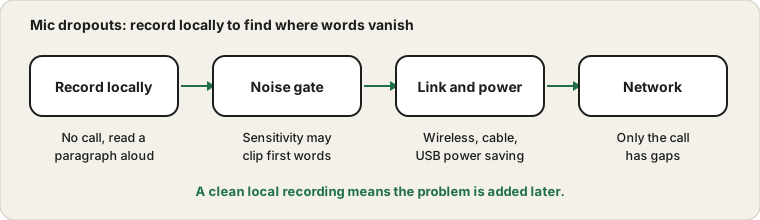
Record locally first
The most useful single test is to record yourself without any call. Use the Voice Recorder, read a paragraph steadily for twenty seconds and play it back. If the recording is clean, the microphone and cable are fine, and the dropouts you hear on calls are being added later by an app setting or by the network. If the recording itself has gaps, the problem is at or before the mic.
What the dropout sounds like and where it comes from
| What you hear | Likely origin | What to check |
|---|
| First syllable of each sentence is cut | Noise gate or voice activity threshold | Lower the sensitivity threshold |
| Words vanish at random | Wireless link or USB power | Move closer, change port, check power saving |
| Voice goes silent then returns | Mute toggling or a loose cable | Check mute keys and wiggle the cable |
| Robotic, choppy voice | Network or busy computer | Test locally and close heavy apps |
| Gaps only for others | Call service or network | Record locally to compare |
| Silence after a few minutes | Power saving turning the device off | Check USB suspend and battery |
Match your dropout to a row, and the rest of the guide tells you which section to open.
The noise gate or voice detection
Many chat apps open the mic only when they think you are speaking. If the sensitivity is set too high, the start of each sentence is clipped, and quiet words can fall below the threshold. Look for an input sensitivity or voice activity setting, lower the threshold slightly and speak a sentence that starts softly. Push-to-talk avoids the problem entirely, at the cost of holding a key. The Discord guide shows where these controls live.
Tuning a noise gate in five steps
- Open the chat app's input settings and find the sensitivity or threshold control.
- Turn off automatic sensitivity so that you can set a value yourself.
- Stay silent for a few seconds and note how high the meter rises with background noise.
- Set the threshold just above that background level.
- Speak softly and see whether the gate opens, and lower the threshold if it does not.
The aim is a threshold that ignores the room but opens for your quietest words. If no value satisfies both, the room is too noisy for a gate to work well, and push to talk is a better choice.
When push to talk is the better answer
If a gate cannot be tuned to work in your room, push to talk is a fair alternative. You hold a key while you speak, so the microphone is open only when you want it. It removes background noise between sentences and avoids clipped first words. The cost is that you must remember to press the key, and a key that does not register leaves you silent. Pick a key that is easy to reach, test it with the Keyboard Test and keep a hand near it during calls.
Confirm the fix with a longer test
Dropouts can be intermittent, so a thirty-second test proves little. After you make a change, record or talk for at least ten minutes, during the kind of activity where dropouts used to appear. Note whether any gaps remain. If the problem was power saving, it may take several minutes to show up, and if it was heat, it may need an hour. A longer test costs little and saves you from declaring victory too early.
Keep a short log
If dropouts keep coming back, write down the time, what you were doing and which device was in use. A pattern often appears after a few entries, such as every call after lunch, or every time the laptop is on battery. The log turns a vague complaint into evidence you can act on.
Wireless mics and Bluetooth
A wireless mic or headset can drop words when the link is weak. Move closer, keep the transmitter in clear line of sight, replace or charge the battery and remove other devices that may be crowding the same radio band. Bluetooth headsets are also sensitive to being far from the computer. The Bluetooth mic quality guide explains why call audio on these links sounds the way it does.
Checking a wireless link
- Keep the transmitter or receiver in clear line of sight, not behind the computer or inside a drawer.
- Replace or charge the battery of the microphone or headset before testing.
- Switch off other wireless devices nearby for a test, then add them back one at a time.
- Move to the same room as the receiver and see whether dropouts vanish.
- Re-pair the device if it keeps losing the connection.
- Update the firmware if the maker provides updates.
If dropouts vanish when you are close and return when you move away, the link is the cause and distance is the simplest fix.
Scenarios and what to do
It helps to think of dropouts in terms of when they happen. If they happen at the start of a sentence only, suspect the gate. If they happen when you move your head or the headset, suspect the wireless link or a loose cable. If they happen after a few minutes of use, suspect power saving or heat. If they happen only on long calls with video, suspect load or network. If they happen at random, with no pattern, record several minutes locally and note the times.
Giving each pattern a likely cause keeps you from changing everything at once. It also gives support something concrete if you need to ask for help, since you can describe when the dropouts occur and what you already checked.
USB ports and power saving
A wired USB mic can cut out if the cable is loose, if it shares a crowded hub or if the computer powers down the port to save energy. Try a port directly on the computer, a different cable and, on a laptop, the power plan with USB suspend turned off. Wiggle the cable gently while watching the meter. If the bar twitches, the cable or the connector is damaged.
Power and port settings that cause dropouts
| Setting or part | Why it can cause dropouts | What to try |
|---|
| USB selective suspend | Turns the port off to save power | Disable it in the power plan for a test |
| Laptop battery saver | Lowers power to peripherals | Test while plugged in |
| Crowded USB hub | Shares limited bandwidth and power | Plug in directly |
| Long or thin cable | Voltage drops and signal loss | Try a short, good cable |
| Loose connector | Intermittent contact | Wiggle gently and replace the cable |
| Front panel ports | Often weaker wiring | Use a rear port on a desktop |
If a change of port or power plan cures the dropouts, you have found a cheap and permanent fix.
A busy computer
If the processor is overloaded, audio can stutter. This is more noticeable in a call that also runs video. Close heavy tabs and apps, lower the video resolution and see if the dropouts ease. A short local recording while the computer is busy shows whether it is the load.
Computer load and network, side by side
Two other causes are easy to confuse with a bad microphone. A computer under heavy load can stutter audio, especially with video on, large downloads or a browser full of tabs. A weak network can make a call sound choppy even when the microphone is perfect. The way to separate them is to test each on its own: record locally while the computer is busy, and then run a call on a quiet computer.
If the local recording stutters only when the computer is busy, reduce the load. If the local recording is clean and calls stutter, improve the network by using a cable, moving closer to the router or pausing other uploads. If both are clean, the cause is likely the microphone gate or the call service.
Drivers, updates and restarts
If dropouts began after an update, the driver may be the cause. Check whether the device lists a new driver version, and consider rolling back if the problem began right after an update. A restart of the computer clears many audio glitches, and unplugging and replugging a USB microphone resets its connection. If the device has firmware, check the maker's page for updates. Avoid installing several audio tools at once, since they can fight over the device and cause dropouts.
When only the call has gaps
If the local recording is smooth but others hear chopped audio, the cause is the network or the call service. Switch from Wi-Fi to a cable or move nearer the router, pause other uploads and try again. A short test call or the app's own audio test can help you tell the difference before an important meeting.
Sources and scope
Dropouts can come from the mic, the cable, the computer, the app or the network. A local recording helps separate them but does not measure your internet connection.
Official documentation used for this guide: