Measure before you change anything
Open the Mic Test, allow the microphone and say a normal sentence at the volume you use in a call. Watch the level meter. A healthy voice should reach well into the upper half of the meter, with only the loudest syllables getting near the top. If the bar barely leaves the bottom, the signal really is weak. If it moves nicely but people still complain, the problem is probably in the app or on their side.
Keep this test open while you try the next steps. Seeing the bar jump after each change is much more reliable than guessing.
Reading the level meter
The meter is the quickest way to know whether the problem is the signal or something later in the chain. This table helps you interpret what you see while you speak at normal volume.
| What the meter does | What it suggests | Next step |
|---|
| Barely moves | Signal is very weak or the wrong device is chosen | Check the device selection, then the input slider |
| Moves in the lower quarter | Signal is weak but present | Move closer and raise the slider a little |
| Reaches the middle on normal speech | A healthy level | Leave the settings alone |
| Reaches the upper half on normal speech | Strong, clear level | Check that loud words do not hit the top |
| Sits at the top | Too loud, risk of distortion | Lower the level and see the clipping guide |
| Moves, but people still say you are quiet | Problem is in the app or on their side | Check the app's input slider and their speakers |
If you are somewhere between rows, trust the playback more than the meter. A clip that sounds clear and even is better than a bar that looks impressive.
Distance is the biggest lever
A microphone hears much more of your voice when it is close. Moving from arm's length to roughly a hand's width or two from your mouth can lift the level more than any slider, and it also makes the room sound quieter by comparison. A laptop's built-in mic is often a small opening near the keyboard or the camera, so the simplest improvement is to lean in or use a headset with the mic near your mouth.
Aim the mic slightly to the side of your mouth rather than straight at it. That keeps breath sounds from thumping into it while still keeping you close.
Distance and position for common microphones
| Microphone | Sensible distance | Notes |
|---|
| Headset boom | Two fingers from the corner of your mouth | Keep it just off to the side |
| USB desk microphone | About a hand span | Speak across it, not directly into it |
| Laptop built-in | Arm's length, facing the screen | Avoid blocking the opening with papers or mugs |
| Webcam microphone | Close to the camera and facing you | Usually weaker than a headset |
| Phone microphone | A few finger widths from your mouth | Do not cover the bottom edge with your hand |
| Lavalier clip microphone | Clip to the collar, near the chest | Keep fabric from rubbing against it |
These distances are starting points. A short test recording will show whether a slightly closer or farther position suits your voice and room.
In Windows, open the sound settings, pick your microphone under Input and use its volume slider while watching the test bar. On a Mac, the Input tab in Sound has a similar slider. Raise it in steps until your normal speech sits comfortably in the upper half of the meter, not pinned at the top.
Then check the call or recording app. Many of them have their own input slider, and some set it automatically. If the system level looks right but one app is still quiet, that app's own setting is the next place to look. The mic not working guide walks through the permission and device checks if the bar does not move at all.
A calm order for raising the level
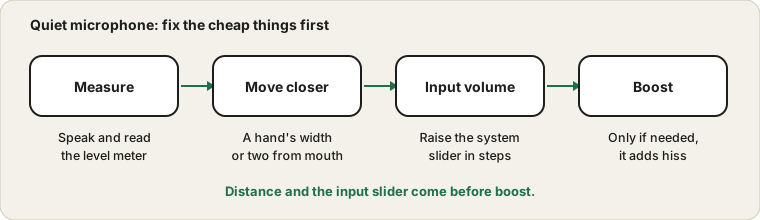
- Speak a normal sentence into the Mic Test and note the meter.
- Move the microphone closer, then test again.
- Open the system sound settings and select the right input device.
- Raise the input slider a little at a time while you speak.
- Check the call or recording app for its own input slider and make sure it is not low.
- Turn on boost only if the level is still weak after the steps above.
- Record a clip and listen to it on headphones to confirm the sound is clear, not hissy.
The order keeps noise down. Each step gives you more signal without raising the hiss that follows boost.
Use boost sparingly
Some devices offer a boost or gain option in the microphone's properties. It amplifies the signal before it reaches the system, which also amplifies the hiss and the room. A little can rescue a very quiet mic, but if you need a lot, the real fix is usually distance or a better microphone. If the meter now looks fine but the recording sounds fuzzy, reduce boost and see the hiss and background noise guide.
The room and your voice matter as well
A voice that is naturally soft needs more care. Speaking at a steady, relaxed volume and a consistent distance gives a more even result than moving closer and farther. If you tend to trail off at the end of sentences, a microphone close to your mouth catches the end of the word better than a distant one. A quieter room also helps, because the system does not need to raise the level so far to hear you over the background.
If you often join calls from a noisy place, a headset with a boom microphone is a better investment than a stronger boost. It puts the microphone where your voice is loudest and leaves the room behind. A soft voice and a noisy room together are the hardest case for any setting.
Make sure it is the right microphone
Laptops often list several inputs: the built-in array, a webcam mic, a headset and sometimes a virtual device. If the selected one is a far-away built-in mic while you are wearing a headset, everything will sound distant. Switch to the headset mic in the sound settings and in the app, then repeat the test.
Apps that change the level for you
Some call apps and recording tools adjust the microphone level automatically. In a quiet room this can be helpful, because the app raises a soft voice. In a noisy room it can backfire, because the app raises the background between your words. If your level seems to change on its own, look for an automatic volume or gain option in the app's audio settings, and test with it on and off.
The same applies to system features that adjust the input. If the level drifts up and down, turn off automatic adjustments and set a fixed level yourself. A fixed level is predictable, and you can learn how your voice sits on the meter.
Phones and tablets have the same problem
The same rules apply on a phone. The microphone sits at the bottom edge, and a hand, a case or a pocket can cover it. Hold the phone so that the bottom edge points toward your mouth, and keep your fingers away from the opening. If you record voice messages, tilt the phone slightly and speak across the opening rather than into it.
When it is the hardware
If you have moved close, raised the right sliders and tried another app, and the level is still weak, test a different microphone or headset on the same computer. A different device that works well points to the first mic, a blocked opening or a loose connection. The same weakness on every device points to the computer's input settings or driver. If the opposite happens and the sound is harsh or crackly when you speak up, head to the distortion and clipping guide.
Quick checklist before you buy anything
- The right microphone is selected in the system and in the app.
- Nothing covers the microphone opening, such as a case, a sticker or a cloth.
- The mute switch on the headset or keyboard is off.
- The microphone is close to your mouth, not at arm's length.
- The input level is raised to a sensible value and boost is used only if needed.
- The app's own input level is not set low.
- Another microphone, if you have one, gives a stronger signal on the same computer.
If every item passes and the level is still weak, a better microphone is a sensible purchase. If one item fails, you have saved the money.
Sources and scope
Levels, slider names and menu paths differ by Windows and macOS version and by device, so treat the steps as a guide to where to look. A quiet signal can also come from the microphone itself or from the other person's playback.
Official documentation used for this guide: