Mic hiss and background noise: name it before you fix it
A steady hiss, a low hum and a noisy room are three different problems that all get called background noise. Each one has a different cause, and the wrong fix, such as aggressive noise removal, makes the voice sound worse without solving anything.
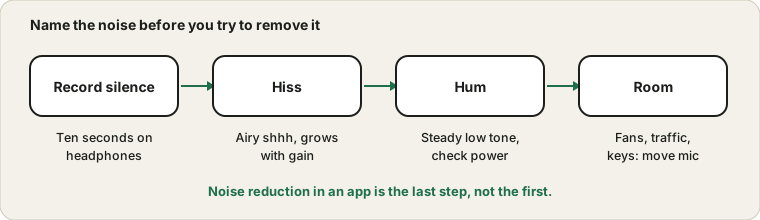
Record a few seconds of silence first so you know what you are fixing.
Record ten seconds of silence
Put on headphones, open the Voice Recorder and record about ten seconds without speaking. Play it back at a normal volume. What you hear in that quiet clip is your noise floor, and it tells you which kind of noise you have.
A smooth, airy shhh is hiss. A constant low tone, often steady in pitch, is hum. Fans, traffic, an air conditioner or a keyboard are room noise. Many setups have a bit of each, but one usually dominates.
Three kinds of noise compared
Type
What it sounds like
Common cause
Best first fix
Hiss
Airy and constant, like a soft shhh
High gain or a low-grade microphone
Lower boost and move the mic closer
Hum
Low, steady tone
Power or cable interference
Try another port and separate cables
Room noise
Fans, traffic, air conditioning
The environment
Reduce or move the source
Crackle
Pops and static
Loose connection
See the crackling and distortion guides
Keyboard thumps
Taps and rattles
Mic near the keys
Move the mic or use a boom
Electrical buzz
Rising when the screen or mouse moves
Interference
Move cables and nearby devices
Recording silence and listening with headphones is the best way to tell these apart. Your ear is a better detector than any meter.
Hiss: usually gain, not room
Hiss comes from the electronics in the mic and the preamp, and it grows when the gain is raised. If you boosted the input to compensate for a quiet voice, you also boosted the hiss. Lower the boost or input level, move closer to the mic and speak at a normal volume instead. The quiet mic guide covers raising the level the cleaner way.
Cheap Bluetooth and some built-in mics also have a naturally higher noise floor. If the hiss stays after you lower the gain, that may simply be the limit of that microphone.
Microphone type and noise
Different microphones have different noise levels. Cheap microphones and small built-in ones tend to be noisier, because their parts are small and low-cost. Larger microphones and those with better electronics have lower noise. A dynamic microphone is less sensitive to room noise than a condenser, which is why many podcasters use them in untreated rooms. If you cannot reduce noise with settings and placement, the microphone type may be the limit, and a modest upgrade can be transformative.
Noise is not the same as sound quality
A microphone can have low noise and still sound thin, and a noisy one can still sound warm. When you compare microphones, listen for both noise and tone. A quiet recording of a thin voice may not be the improvement you want. Test with the same sentence in the same room and judge them side by side, and remember that placement and room often matter more than the price of the microphone.
If you are not sure what you are hearing, ask someone else to listen. A second pair of ears often hears a hum or a hiss you have stopped noticing, and agreement between two listeners is a good sign that your fix has worked.
Where noise gets added along the chain
Noise enters at several points, and it gets amplified by everything that follows. The microphone itself has a noise floor. The preamp or the input adds a little more. Boost in the system multiplies both. The app may apply its own gain on top. By the time the sound reaches the other person, a faint hiss at the start has been raised along with your voice.
This is why the order of fixes matters. Reducing gain early in the chain, by moving closer and lowering boost, removes noise at the source. Noise reduction late in the chain, inside an app, tries to hide what has already been added. Both can be useful, but the early fix gives the cleaner result.
Hum: look at power and cables
A low, steady hum often travels in through the electrical side. Try a different USB port, move the mic cable away from power cables and chargers, and unplug a laptop charger briefly to see whether the hum changes. A hum that appears only when a certain device is plugged in points at that device.
Quick checks for a hum
Record ten seconds of silence and confirm that the hum is in the recording.
Unplug the laptop charger briefly and record again to see whether the hum changes.
Move the microphone cable away from power cables and chargers.
Try a different USB port, ideally on the opposite side of the computer.
Disconnect other USB devices one by one while recording.
Try the microphone on another computer to see whether the hum follows it.
The step that makes the hum change tells you which device or cable is responsible.
Room noise: move the source or the mic
Fans and air conditioning are the usual suspects. Close the window, turn the fan away, and point the mic's quiet side, the back of a directional mic, toward the noise. A mic close to your mouth hears your voice louder relative to the room, so a simple headset often beats an expensive mic placed far away. Keyboard clatter is easier to reduce by moving the mic away from the keys.
Choosing where you record
The best place to record is usually a small, quiet room with soft surfaces. A closet full of clothes can be surprisingly good, because the clothes absorb sound. A bedroom with a bed and curtains is much better than a kitchen. If you cannot change rooms, add soft things: a blanket hung behind the microphone, a rug on the floor, cushions on a hard table.
Also consider the time of day. Traffic, neighbours and building noise vary, and the same room may be quiet at night and noisy in the morning. Record a short sample before you start a long session, and listen for the noises you did not notice while you were speaking.
Reducing room noise without spending much
Close doors and windows during calls and recordings.
Turn fans and air conditioning away from the microphone, or off for short recordings.
Move the computer away from loud fans, or raise it off the desk.
Use a mat under the keyboard to dampen taps.
Add soft furnishings, such as a curtain or a rug, to reduce reflections.
Choose a directional microphone and point its quiet side at the noise.
Small changes add up. A closer microphone and a closed door together often beat an expensive piece of equipment.
Noise reduction is the last step
Call apps and some drivers include noise suppression. It can help with steady background sound, but it works by guessing what is voice and what is not. Set too strong, it makes speech sound thin, clipped or watery. Try the setting on a short test, compare it with the setting off, and keep it at the gentlest level that does the job.
Electrical noise from computers and chargers
Modern computers and chargers create electrical noise, and a microphone can pick it up. USB microphones are especially affected by the power line they share with other devices. A laptop charger that is slightly faulty can add a high-pitched whine, and a monitor or a phone charging nearby can add buzz. If your noise changes when you plug or unplug something, you have found the source.
A simple test is to run the laptop on battery, unplug unneeded devices and record silence again. If the noise drops, add devices back one at a time. A powered USB hub with good shielding, or a different port, may then help. For a desktop, keep audio cables away from the power supply and avoid long parallel runs beside power cables.
Noise suppression settings compared
Setting
Effect on noise
Effect on your voice
When to use it
Off
None
Most natural
Quiet room and a good microphone
Low or auto
Reduces steady noise gently
Mostly natural
Everyday calls
High
Strong reduction
Can sound thin or choppy
Very noisy rooms
Echo cancellation
Reduces speaker sound
Slight processing
Calls with speakers
Voice isolation modes
Focus on the voice
Can flatten the sound
Speech in noisy places
App plus driver processing together
Doubled effect
Often unnatural
Avoid unless needed
Try a short recording with each setting and listen back. The setting that sounds most natural is usually the right one.
When the mic is the limit
If the quiet recording still hisses with the gain low and the mic close, try a second microphone on the same computer. A cleaner result means the first mic is the limit. The same noise on every mic suggests the computer's input or a driver enhancement, which you can test by turning enhancements off in the device properties.
Questions people ask most
Is hiss always a sign of a bad microphone? No. Gain and distance are far more common causes.
Can a USB microphone be noisy? Yes, if the USB port or cable adds interference, so try another port.
Why does noise appear only during calls? The call app may boost the input or add processing.
Do I need an expensive microphone? Not always. Placement and room matter more, as the quiet microphone guide explains.
What if my voice is harsh instead? That may be clipping, covered in the distorted mic guide.
Sources and scope
Noise has several causes, and a recording test cannot prove which one you have. Noise suppression in apps changes how a voice sounds, so compare short samples with it on and off.