
How to test your microphone on Windows 10
Windows 10 still has the old-fashioned Sound panel with its green level bar, and it shows more than the newer Settings app does. If you are still on Windows 10, this is the quickest way to see what your microphone is really doing.
Last updated: · By the ProDeviceTest editorial team
A note about Windows 10 itself
Windows 10 reached the end of its support period, which means it no longer gets regular security updates unless you are in a special programme. Everything below still works on a machine that runs it, but if the computer can take Windows 11, upgrading is worth planning. The Windows 11 version of this guide covers the newer screens.
Open the classic Sound panel
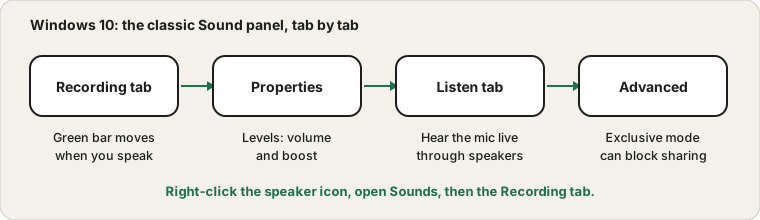
Right-click the speaker icon near the clock and choose Sounds, then open the Recording tab. If you do not see the speaker icon, open Settings, then System, then Sound, and look for Sound Control Panel on the right. Every microphone Windows knows about is listed here, and each row has a small bar beside it.
Talk, and the bar beside the right microphone should jump in green. That jump is the whole test. It is more immediate than the Settings page because it reacts while you are speaking, so you can tap the mic or move it and watch the response.
Missing or greyed-out devices
Right-click the empty space in the list and tick both Show Disabled Devices and Show Disconnected Devices. A microphone that was switched off once, perhaps by a driver update, shows up greyed out. Right-click it and choose Enable. Then right-click again and choose Set as Default Device so apps start using it.
Levels and boost
Double-click a microphone, then open the Levels tab. There is a volume slider and, on some devices, a boost slider measured in decibels. Boost makes quiet mics louder, but it also raises the hiss, so use the smallest amount that gets a clear signal. If you can only be heard when you shout, raise the main slider first and boost only if that is not enough.
Check that the little speaker icon on this tab is not showing a red cross. A muted microphone looks exactly like a dead one from the outside.
The Listen tab
On the same properties window, the Listen tab has a box called Listen to this device. Ticking it plays your voice through your speakers or headphones in near real time, which is a quick way to hear how you sound. Use headphones. With speakers the sound feeds straight back into the mic and you get a howl.
Untick the box and press OK when you have finished. Left on by accident, it is why some people hear themselves in every call for weeks.
Exclusive mode
Under Advanced, there is a setting that lets applications take exclusive control of the device. When it is on, one program can lock the microphone so no other program can use it. If a game or editor works but your browser call stays silent, try unticking it. Close the program that was holding the mic first, because the lock only releases when it lets go.
The general four-stop method for a silent mic is in the guide to finding where the sound gets lost.
Sources and scope
Windows 10 has reached the end of its support period, so some menus and drivers may not match newer guidance. The classic Sound panel can show that a signal arrives; it cannot judge the sound or fix a faulty microphone.
Official documentation used for this guide:
Try it on ProDeviceTest
- Mic Test — check the same microphone from the browser, where most calls happen
- Sound Test — test speakers and headphones too
- Tone Generator — a steady tone for checking output levels
More guides: all ProDeviceTest guides