
Why your Bluetooth headset sounds worse the moment the mic turns on
You are listening to music on your earbuds and it sounds great. You join a call and everything turns tinny and thin. Nothing is broken. This is a trade-off built into how Bluetooth handles two-way audio, and knowing it saves a lot of troubleshooting.
Last updated: · By the ProDeviceTest editorial team
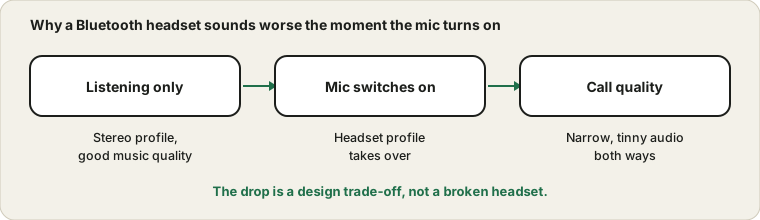
Two modes, two qualities
Bluetooth headsets talk to a computer or phone in different ways depending on what you are doing. For listening only, they use a profile built for stereo music, which has a lot of room for detail. When a microphone is needed too, many devices switch to a hands-free profile designed for phone calls. It has to carry sound in both directions at once and uses much less bandwidth for each, so music turns flat and voices sound narrow.
The switch is not a defect. It is how the older, widely supported call profile behaves. Newer Bluetooth audio standards are improving this, but support is uneven, so the headset, the computer or phone and the app all need to understand it.
Why Windows shows two entries
On Windows you may see your headset listed twice, one as headphones and one as a headset. The first is the stereo one. The second is the hands-free one with the microphone. If an app picks the headset entry, your music quality drops for as long as it does. Choosing the stereo entry for output and a different microphone for input keeps the music clean, and it is usually the better arrangement for long calls.
Check which entry your call app is using in its audio settings. The default is not always the one you want.
A setup that sounds better
- Use the computer's own mic or a USB mic for speaking.
Keep the Bluetooth headset for listening only. You get stereo sound and a clearer voice.
- Or use a wired headset for calls that matter.
A cable avoids the profile switch altogether.
- Or accept the call mode and check it.
Record yourself with the Mic Test and judge whether you are happy with how you sound.
AirPods and similar earbuds
AirPods let you decide which bud acts as the microphone. In their settings there is a Microphone option with Automatic, Always Left and Always Right. Automatic is fine for most people. Setting one side permanently helps when you often wear only one bud, because the mic then stays on the bud that is in your ear. The settings page for AirPods on Apple's site explains the options.
If your voice cuts out when you take one bud out, this is the setting that explains it.
Small checks that help
Keep the earbuds close to the device while testing. Move away from a crowded desk covered in other wireless gear. Restart Bluetooth if the connection feels unstable. If the headset connects but there is no sound at all, it may be paired to a different device nearby, such as a phone in the next room.
When one earbud is silent the issue is different, and the one-side-silent guide covers it.
When to blame the headset
If the headset sounds poor even in a quiet room, with a full battery and a good connection, and a different headset on the same computer sounds fine, the headset's mic is just not good. Cheap earbud mics are built to be small, not to sound excellent. A cheap USB microphone often beats an expensive pair of earbuds for speech. For anything important, the pre-call routine tells you in ten minutes whether your setup is acceptable.
Sources and scope
This guide explains a general Bluetooth behaviour. How much quality you lose depends on the headset, the device, the app and the audio standards they all support, so results vary.
Official documentation used for this guide:
Try it on ProDeviceTest
- Mic Test — compare the headset mic with your laptop's mic by ear
- Sound Test — check stereo balance on the listening side
- One side silent — if one earbud plays and the other does not
More guides: all ProDeviceTest guides