
Discord mic not working: check these layers in order
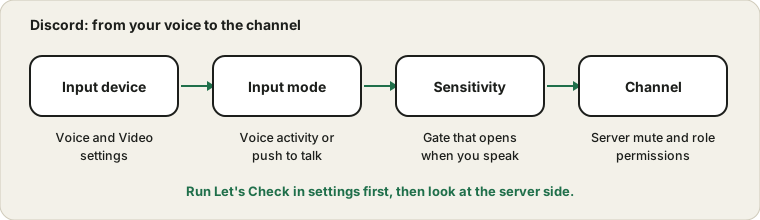
Discord is not just an app that uses your microphone. It adds its own settings on top: an input device, an input mode, a sensitivity gate and server permissions. Any of them can silence you while the microphone itself is perfectly fine.
Last updated: · By the ProDeviceTest editorial team
Split the problem in two
Open the browser Mic Test first. If it shows your voice, the microphone and the operating system are fine, and the problem is inside Discord or on the server. If the bar stays flat, Discord is not the problem and the general mic guide is the better place to start.
Voice and Video settings
Open User Settings, then Voice and Video. The Input Device menu is the first thing to check. Leaving it on Default follows the system, which is risky if a webcam or headset has become the default. Choose the microphone by name. Beside it, there is a Let's Check button that records a short sample and plays it back, so use it before you jump into a channel.
The input volume slider matters too. If it is near zero, you will be quiet or silent whatever else is configured.
Voice activity or push to talk
Under Input Mode there are two choices. Voice Activity opens your mic when you speak. Push to Talk opens it only while you hold a key, and if the key does not register, no one hears you. Games and other programs can swallow the key press. Test the key with the Keyboard Test to rule out a dead key, and try a different one.
With Voice Activity, the automatic sensitivity setting works well in a quiet room. In a noisy one, turn it off and set the threshold by hand, using the bar as a guide. A threshold set too high means Discord thinks you are not speaking.
Noise suppression and processing
Discord can reduce background noise, cancel echo and adjust the volume automatically. These can help, but each one also changes your voice. Heavy noise suppression sometimes clips the start of a sentence or gives a watery tone. If you sound odd, turn one option off at a time and check with Let's Check after each change. For a music teacher or singer, switching most of this off often sounds better.
The server side
You can be muted for reasons that have nothing to do with your computer. A server mute, applied by a moderator, shows as a crossed-out microphone you can't clear yourself. A channel can also deny the Use Voice Activity permission to a role, which forces everyone in that role to use push to talk. If your mic works in a friend's server but not in one particular channel, ask a moderator to check.
Desktop app or browser
The desktop app needs the system privacy switch to allow desktop apps to use the microphone. The web version needs the browser's permission for the Discord site. If one works and the other does not, the missing permission is on that route. After changing devices, restart Discord completely so it reads the new list.
If you also use a wireless headset, see why a Bluetooth headset mic can sound worse. Discord has a reset option at the bottom of the Voice and Video page, which restores all voice settings to default and is worth a try after you have written down any settings you want to keep.
Sources and scope
Discord updates its interface often, so some labels may differ from what you see. A mic test inside Discord shows what Discord hears; it cannot reveal a moderator's mute or a server rule you cannot see.
Official documentation used for this guide:
Try it on ProDeviceTest
- Mic Test — confirm your microphone works in the browser first
- Sound Test — check the listening side
- Keyboard Test — for a push-to-talk key that does not register
More guides: all ProDeviceTest guides