
How to test your microphone on Windows 11
Windows 11 has a built-in microphone test, but it is tucked a few clicks deep and the result is easy to misread. Here is where it lives, what the bar is telling you, and the separate privacy switch that explains most of the "works here, not there" cases.
Last updated: · By the ProDeviceTest editorial team
Open the built-in test
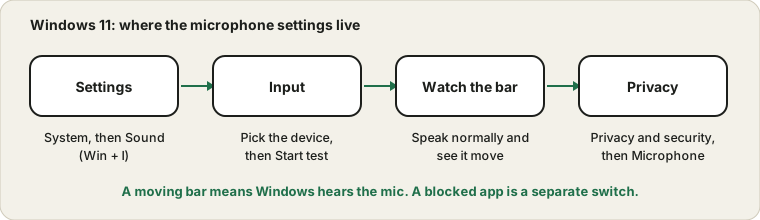
Press the Windows key and I together to open Settings, then go to System and Sound. Scroll to the Input section. You will see your microphones listed. Click the one you mean to use, and the page for that device opens with an input volume slider and a button labelled Start test.
Click it, say a sentence in your normal speaking voice, then click Stop test. Windows reports a result as a percentage. That number is a rough peak of what it heard, not a quality score, so do not chase 100. Somewhere well above the bottom and comfortably below the top is what you want. If it says almost nothing while you were clearly talking, that is the useful finding.
Make sure you tested the right device
The list under Input is longer than people expect. A webcam, a monitor with speakers, a pair of earbuds you used yesterday and a virtual audio device from a streaming app can all appear. The one marked as the default is what most apps use unless they let you choose.
A tidy habit is to speak while the device list is open and watch which row's small bar moves. That shows you which microphone is actually carrying your voice, without guessing from the name.
What the bar tells you, and what it does not
A moving bar means a signal is reaching Windows. That settles stops one and two on the way from your mouth to the call: the microphone and the system. It does not tell you whether you sound good, whether an app has permission to use the mic, or whether the person on the other end can hear you.
For the sound itself, record yourself. The browser Mic Test plays a short clip back, so you hear the hiss, the room echo and the keyboard clatter that a bar can never show.
The privacy switch that mutes apps
Open Settings, then Privacy and security, then Microphone. There are three layers here, and the order matters. The first is the master microphone access switch for the whole device. The second lets apps access your microphone, with a per-app list underneath. The third is a separate switch for desktop apps, which covers older programs that are not from the Microsoft Store.
Browsers, Discord, Zoom and Teams usually count as desktop apps. If the built-in test shows a moving bar but a call app hears nothing, this page is the first place to look. Microsoft documents these switches in its guide to turning on app permissions for your microphone, linked below.
When the bar stays flat
First check the boring things: the mute button on a headset cable, the plug seated fully, a different USB port. Then pick another device in the list. If the bar is still flat for every device, Windows offers a troubleshooter from the same Input page, and it is worth one run before you go reinstalling drivers.
The wider decision tree, from the cable to the app, is in the four-stops guide to a silent mic. Use it if Windows itself cannot see any sound.
Enhancements: handle with care
Many laptops ship with audio enhancements from the maker of the sound chip. They can add noise reduction or echo cancellation, and occasionally they make a voice sound thin or cut the first word of every sentence. If your voice sounds odd on the playback, open the device's properties, find the enhancements or audio effects option, and compare with it switched off. Change one thing at a time and test again, so you know which change helped.
Before a real call
Testing in Settings is the first step, not the last. Once the mic works, run the short routine in how to check your mic before a call, and pick the microphone by name inside the meeting app too. Still on the older system? The classic panel is covered in the Windows 10 version of this guide.
Sources and scope
The menu names follow current Windows 11 builds and can shift between updates. The built-in test shows that Windows receives a signal; it does not judge sound quality or check app permissions.
Official documentation used for this guide:
Try it on ProDeviceTest
- Mic Test — a waveform, a level meter and a playback of your own voice in the browser
- Sound Test — the other direction, for your speakers or headphones
- Webcam Test — for a camera with the mic built in
More guides: all ProDeviceTest guides