
Keyboard typing the wrong characters? Check the layout, not the keys
You press one key and a different character appears. The at sign becomes a quote mark, the Z and Y have swapped, or half the letter keys type numbers. That looks like a broken keyboard, but the keys are almost always working perfectly. The computer is just translating them differently.
Last updated: · By the ProDeviceTest editorial team
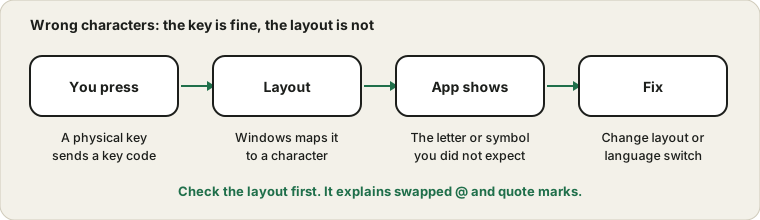
What really happens when you press a key
A key does not send a letter. It sends a position code, a bit like saying the third key on the second row. The operating system then looks at the active layout to decide which character that position means. A US layout and a UK layout put the quote mark and the at sign on different positions, and German layouts swap Y and Z. If the layout is not the one printed on your keycaps, you get the wrong characters even though every key works.
Check the active layout
On Windows, look at the small language code near the clock, such as ENG or DEU. If it shows something unexpected, that is your answer. Open the language and region settings and remove layouts you do not use. Microsoft explains how to manage them in its language and keyboard layout page. A shortcut such as Windows key plus Space, or Alt plus Shift, switches layouts, and it is easy to trigger by accident. That is why people wake up to a keyboard that suddenly types differently.
Use the Keyboard Test to see the key
Open the Keyboard Test and press the key that gives the wrong result. Compare the key the tester reports with the character that shows up in a text box. If the tester reports the right physical key, the key and the keyboard are fine and the layout is converting it. If the tester reports a different key, the keyboard sends the wrong code, which is much rarer.
Number lock, function lock and friends
If letters type numbers on a laptop, a Num Lock or an embedded numeric keypad mode is on, and the Fn or Num Lock key turns it off. If the function row triggers volume or brightness instead of F-keys, a function lock toggles that. Caps Lock and Scroll Lock can also confuse. Check the indicator lights and try each toggle once.
Accessibility features
Sticky Keys, Filter Keys and similar features change how presses are handled. Filter Keys ignores brief or repeated presses, which can look like missing letters, and Sticky Keys holds modifier keys. If you hear beeps or see an icon, open the accessibility keyboard settings and turn them off to check.
If one key is truly dead
When the Keyboard Test shows nothing at all for a key, the problem is physical, and the keyboard keys guide takes over. For double presses on a mouse button, see the mouse double-click guide.
Sources and scope
Layout names and shortcuts follow Windows and can differ on other systems. A key tester shows which key the system receives; it cannot repair a keyboard that sends a wrong code.
Official documentation used for this guide:
Try it on ProDeviceTest
- Keyboard Test — shows which physical key you pressed, so you can compare it with what appeared
- Mouse Test — if the mouse misbehaves at the same time
- Device Report — a quick record of what works
More guides: all ProDeviceTest guides