
Mouse cursor jumping or freezing: surface, signal or settings?
The pointer leaps across the screen, stalls for a second or drifts when you hold the mouse still. That is a different problem from a mouse that clicks twice. The clicks are fine, the motion is not, and the causes live in a different set of places.
Last updated: · By the ProDeviceTest editorial team
The surface and the sensor
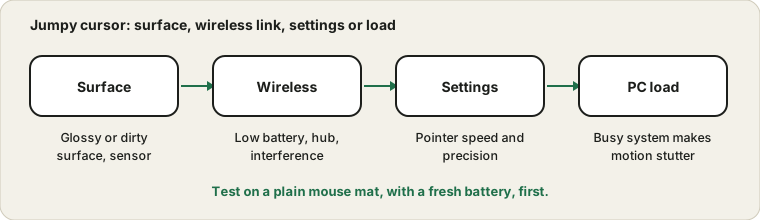
Optical sensors read tiny details of the surface under the mouse. Glass, glossy desks and some patterned surfaces confuse them, which shows up as jumping or drift. Put a plain, matte mouse mat or a sheet of paper under it and test again. Then look at the sensor window on the underside. A hair or a piece of fluff in it is a very common cause, and a gentle puff of air or a dry cotton bud sorts it.
The wireless link
A wireless mouse with a low battery stutters before it dies. Fit a fresh battery first. Then plug the receiver into a port close to the mouse, not behind the computer or in a hub, because distance and metal cases weaken the signal. Other wireless gear nearby can interfere, so try moving the receiver to the front.
See the problem in the Mouse Test
Open the Mouse Test and move the mouse in slow, steady circles. A smooth path means the mouse is fine. Sudden straight jumps or gaps mean the mouse is losing track or the signal is dropping. Comparing wired and wireless, or one mouse and a spare, shows which part is guilty.
Pointer settings
Windows has pointer speed and an option called enhance pointer precision, which changes how fast the cursor moves depending on how fast you move the mouse. Some people find it feels jumpy. Try turning it off and adjusting speed. Microsoft's mouse settings page shows where to find them.
Maybe it is the screen
A display that is at a low refresh rate or skipping frames makes the pointer look jumpy even when the mouse reports perfectly. Run the Refresh Rate Test and the Frame Skipping Test. If those show problems, read the refresh rate guide.
System load and drivers
A busy computer, a failing USB port or an old driver can make input stutter. Close heavy programs, try another USB port and update the mouse software if it has any. If clicks are the problem rather than motion, see the double-click guide.
Sources and scope
These are common causes of erratic pointer motion, not a full diagnosis. A browser test shows movement the browser receives and cannot see a failing sensor or radio.
Official documentation used for this guide:
Try it on ProDeviceTest
- Mouse Test — watch pointer movement and spot jumps and dropouts
- Refresh Rate Test — a slow screen can make a smooth pointer look jumpy
- Frame Skipping Test — tells screen stutter from mouse trouble
More guides: all ProDeviceTest guides