
Webcam looks dark or grainy? Fix the light before the settings
Your webcam works, so this is not a broken-camera problem. The picture is simply poor, and people assume the camera is cheap. Often it is the room. A webcam sensor is tiny, and tiny sensors need a lot of light to look clean.
Last updated: · By the ProDeviceTest editorial team
Why grain appears
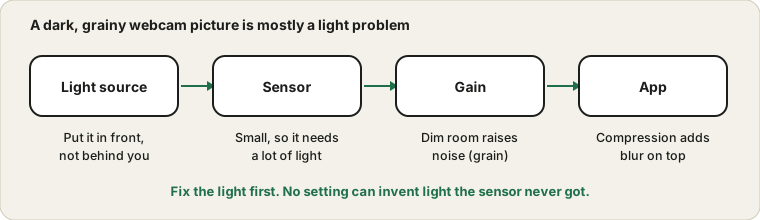
Grain is noise, and noise is what a camera makes when it has too little light. To brighten a dim scene the camera turns up its gain, which amplifies the signal and the random electrical hiss along with it. The darker the room, the more gain, and the more the picture looks like sand. A webcam's small lens and sensor catch very little light to begin with, so the effect shows quickly.
The same dim light can slow the frame rate too, because the camera lengthens each exposure. If your video also looks choppy at night, this is why.
Put the light in front of you
The most common mistake is a bright window behind you. The camera adjusts for the bright background, and your face turns into a dark silhouette. Turn around so that the window or lamp faces you, slightly to one side, and the picture improves more than any setting can achieve.
A desk lamp bounced off a wall works too. Soft light looks better than a bare bulb, which creates harsh shadows. Avoid a light directly above you, which darkens your eyes.
Judge the camera, not the call app
Open the Webcam Test and look at the raw picture. Call apps compress video heavily to save bandwidth, so a call can look worse than the camera can really do. If the browser preview is clean but the call is blurry, the cause is the app or the network, not the lens.
Camera settings that can help
Windows lets you adjust brightness and contrast for a camera in its camera settings, and some webcams have their own app with exposure, white balance and a low-light option. Small changes help, but pushing brightness up on a dark image just reveals more noise. Treat settings as fine-tuning after the lighting is right. Microsoft's page on managing cameras in Windows 11 lists what is available.
Switch off any option that fixes the frame rate, since it may force a longer exposure and make the picture darker.
Clean the lens
A fingerprint on the lens gives a soft, hazy picture that looks like bad focus. Wipe it with a soft microfibre cloth. Check for a privacy shutter that is not fully open, and a protective film left on a new camera.
When the camera really is the limit
A laptop webcam is often a tiny sensor, and no setting can make it match a dedicated camera. If you spend your day on video calls, an external webcam or a phone used as a camera in good light gives a clearer picture. If the camera shows nothing at all, see the webcam checklist. For audio, the pre-call routine covers the microphone side.
Sources and scope
Lighting advice is general and works for most rooms and cameras. Settings vary by webcam model, and a browser preview shows what the browser receives, not how a given call app will compress it.
Official documentation used for this guide:
Try it on ProDeviceTest
- Webcam Test — see exactly what the browser receives, before any app changes it
- Gradient Test — helps tell camera grain from screen banding
- HDR Test — if the preview looks washed out on your own screen
More guides: all ProDeviceTest guides