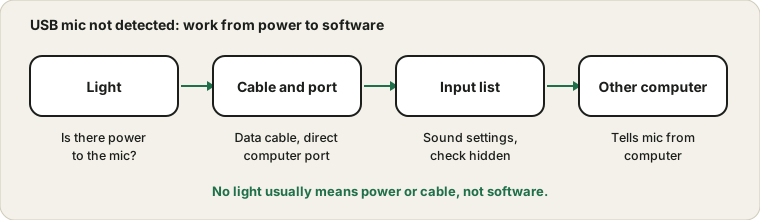
Does the mic power on?
Most USB microphones have a small light or meter that shows they have power. If there is no light at all, the computer is not giving the mic power or the cable is not carrying it. If the light is on but the computer does not list the device, the problem is more likely the data connection, a setting or a driver. This split saves a lot of time.
What the light and the list tell you
| What you see | What it suggests | Next step |
|---|
| No light, nothing in the list | No power reaches the microphone | Try another cable and port |
| Light on, nothing in the list | Power but no data connection | Use a data cable and check the port |
| Listed but no level movement | Wrong device, mute or permission | Check selection, mute and privacy |
| Appears and disappears | Loose connection or power saving | Replug, change cable, disable USB suspend |
| Listed as an unknown device | Driver not recognised | Install the maker's software or a standard driver |
| Works on another computer only | Computer-side port or settings | Check ports, drivers and privacy |
| Works only through a hub | Direct port gives different power | Use the direct port, or a powered hub |
Reading these signs together removes most of the guesswork from a missing USB microphone.
Use a data cable, not a charge-only one
Some cables carry only power, not data. A mic will light up on one but never appear as an audio device. Try the cable that came with the mic, or another that you know transfers data. Try a short cable if you have one, because long or damaged cables can cause unstable connections.
Cables that look the same and are not
Two USB cables can look identical and behave very differently. Some carry only power and are made for charging. Some carry data but are too thin or too long for stable audio. Some are marked for high-speed data and work well with microphones. If a cable came with the microphone, use it first. If you must use another, choose a short, well-made cable, and avoid ones with loose connectors or visible damage.
Connector types matter too. A microphone with a micro, mini or USB-C connector needs the matching cable, and adapters add a point of failure. If you are using an adapter, test the microphone without it. A direct cable between the microphone and the computer is the simplest and most reliable arrangement.
Plug straight into the computer
Hubs, docks and front-panel ports can supply less stable power. Connect directly to a port on the computer, ideally on the back of a desktop, and avoid sharing a hub with other busy devices. If a port works for a phone but not for the mic, try another port before assuming the mic is faulty.
A short plan for ports and power
- Unplug the microphone and any other USB devices that are not needed.
- Plug the microphone directly into a port on the computer.
- Wait several seconds for the system to recognise the device.
- Open the sound input list and look for the microphone by name.
- If it is missing, try a different port on the other side of the computer.
- Test with a different cable.
- Restart the computer with the microphone plugged in.
If none of these makes it appear, move on to the driver and other-computer checks.
Look in the sound settings
On Windows, open the sound settings, find the Input section and look for the mic by name. Older entries may be listed as disabled, so check the full device list rather than only the active one. On a Mac, open the Input tab of the Sound settings and check whether the mic is listed there. Select it and speak while watching the level. The Mic Test will show whether audio is arriving.
If the mic never appears in the list, the general mic not working guide covers permissions and the quick resets.
Where to look for the device
| System | Where | What to look for |
|---|
| Windows sound settings | Input section | The microphone by name, and a disabled list |
| Windows Device Manager | Audio inputs and outputs, Sound, video and game controllers | The device or an unknown device |
| Windows classic sound panel | Recording tab | The microphone and its live bar |
| Mac Sound settings | Input tab | The microphone in the device list |
| Mac System Information | USB section | The microphone as a USB device |
| Browser site settings | Microphone choice | The device name in the dropdown |
If the device appears in a system list but not in an app, the app's device choice is the next place to look.
Drivers and device manager
Most modern USB mics work without extra software because they follow a standard audio class. If yours came with its own app or driver, install it from the maker's page, and check whether a restart is needed. In Windows Device Manager, look for the device under audio inputs or under unknown devices, and try disabling and enabling it. Unplug the mic, restart the computer and plug it in again if it still hides.
When the maker's software is needed
Many microphones work with no extra software, but some need an app for settings such as gain, monitoring and lighting. Without it, the microphone may be detected but run with default settings, or not show all its options. If your model has a companion app, install it from the maker's page, not from an unknown site. Run it, check that the microphone is recognised there and look for a firmware update.
Be careful with older microphones. A device made for an older system may need a driver that does not work on newer versions. Check the maker's page for the model and your system. If the microphone is detected as a generic audio device, you may not need anything else.
Power, hubs and docks in more detail
USB microphones draw power from the computer, and a hub or dock that shares limited power among many devices can leave the microphone starved. Signs include a microphone that appears only when other devices are unplugged, one that disconnects when a phone starts charging, and one that works in a port on the computer but not on the hub. A powered hub, with its own power adapter, supplies each device properly and is a sensible choice for a busy desk.
On laptops, the dock's firmware and its power supply matter as well. An underpowered dock may give each port less power than the specification suggests. If the microphone works on the laptop's own port and fails on the dock, check that the dock is fully powered, update its firmware and, if you can, try a different dock port or a short cable.
A good habit is to connect the microphone first, before other devices. Some systems allocate power in order, and the first device gets what it needs. If the microphone appears when it goes in first, you know that power sharing is the cause.
Try another computer
The last test is the clearest. If the mic is recognised on a second computer, the mic and cable are good and the first computer's port, settings or driver need attention. If it fails on both, the mic or cable is the likely fault, and a different cable is the cheapest thing to try before contacting the maker.
If you use a Mac
On a Mac, a USB microphone should appear in the Input tab of the Sound settings within seconds of being plugged in. If it does not, check the cable and port first, then look at System Information to see whether the Mac sees the device at all. If System Information lists it but Sound does not, restart and look again. Some microphones need a privacy or accessibility approval for their companion app. If a prompt appears and was dismissed, open the Privacy and Security settings and approve it there.
Apple silicon and Intel Macs handle USB power a little differently, and some older microphones work better through a powered hub. If a device is recognised only through a hub, that tells you something about the power supply of the direct port or the cable.
Sources and scope
These checks cover the common connection causes. Some microphones need their maker's software, so also read your model's own instructions. Menu names vary by system version.
Official documentation used for this guide: