Headset mic not detected on a 3.5 mm jack: plug and port checks
The sound plays perfectly, but nobody can hear you. With a wired headset on a 3.5 mm jack, the usual cause is a mismatch between the plug and the port. Laptops, desktops and phones do not all wire the headset jack the same way, so it is worth checking the plug before touching any setting.
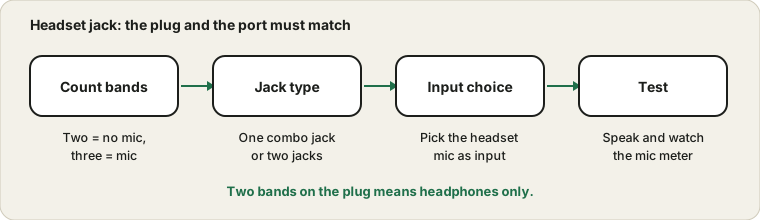
Two bands on the plug means headphones only. Three bands carries a mic.
Count the bands on the plug
Look at the metal part of the 3.5 mm plug. A headphones-only plug has two dark bands separating three metal sections. A plug with a microphone has three bands, which makes four sections. If your headset has only two, it cannot send a microphone signal over that plug at all, however the settings are arranged.
Plug types at a glance
Plug
Bands on the metal
What it carries
Mono
One band
One audio channel
Stereo headphones
Two bands
Left and right audio
Headset with microphone
Three bands
Left, right and microphone
Microphone only
One or two bands
A microphone signal
Splitter pair
Two separate plugs
Headphones and microphone apart
USB-C or lightning adapter
Not applicable
Digital audio, often with a microphone
A quick look at the plug tells you whether a microphone is even possible. If the plug has two bands, no setting can add one.
One combined jack or two separate jacks?
Many laptops and phones have a single combined headset jack that accepts the four-section plug. Many desktops have two jacks, one for audio out and one for a microphone, often colour-coded green and pink. A four-section plug in the green jack will play sound but its mic will not be used. Use the correct jack or a splitter cable that separates the headphone and microphone plugs.
Jacks and the plugs that suit them
Port
Looks like
Suits
Combined headset jack
One socket, usually with a headset icon
Plugs with a microphone, and ordinary headphones
Green output jack
Green ring or icon
Headphones and speakers
Pink input jack
Pink ring or microphone icon
A microphone only
Blue line-in jack
Blue ring
Line level devices, not most microphones
USB port
Rectangular or oval socket
USB headsets and adapters
Phone socket
Single small hole
Depends on the phone, check the manual
Match the colours and icons on your computer. If you have a headset with a single plug, a combined jack is what you need, or a splitter.
Buying a headset that suits your port
If you are buying a new headset, check its plug against your device first. A single four-section plug suits a combined jack. A pair of plugs suits separate jacks. A USB headset suits almost any computer with a USB port, and an adapter lets you use a four-section headset on a computer with separate jacks. Reading the product page for the plug type avoids a return.
Look at reviews that mention the microphone, not only the sound. A headset can be excellent for music and poor for calls. If you plan to use it with several devices, a USB or wireless headset with its own dongle is usually the safest choice.
Splitters and adapters
Splitters and adapters are another common cause. A splitter made for a laptop's combined jack will not behave the same way on a desktop, and the other direction needs the opposite adapter. Look at the product description, and try plugging in directly if you can to rule the adapter out.
A step-by-step check for the jack
Count the bands on the headset plug.
Find the jack or jacks on your device and note their icons or colours.
Plug the headset in firmly and wait for any prompt that asks what you connected.
Choose the headset or microphone option if a prompt appears.
Open the sound input list and select the headset microphone.
Test the headset on another device to confirm that the microphone works.
If the headset microphone works elsewhere, the first device's jack or settings are at fault, and the next sections explain how to narrow it down.
Make sure the headset mic is the chosen input
After plugging in, open the sound settings and look under Input. Some systems ask what you plugged in, such as headphones, headset or microphone, and choosing the wrong one means the mic is never selected. If the headset mic is listed, select it and speak while watching the Mic Test. If it is not listed, replug it firmly and check the full device list for a disabled entry.
The mic not working guide covers permissions and the app-level checks that come next.
What the plug-in prompt really asks
Many computers show a small prompt when you plug into the jack, asking whether you connected headphones, a headset or a microphone. Choosing the wrong one can leave the microphone disabled. If you chose wrongly, unplug the headset and plug it in again, then choose the option that matches your device. On some systems the prompt comes from the sound chip maker's software, which also has a settings page where you can change the jack's behaviour.
If you never see a prompt, the system may be using a default. Open the sound settings and look at the input list. If the headset microphone is not listed, the jack may be set to output only, and the sound chip software may offer a switch. Other computers detect the change automatically and need nothing.
Plug wiring differences
There are two wiring conventions for the four-section plug, and they swap the microphone and ground contacts. A headset wired one way on a port built the other way can play sound but give no mic, or a weak, noisy mic. Some devices handle both. If you have another headset, try it on the same port: if that one works, the first headset's wiring may not suit the port.
Symptom, likely cause and fix
Symptom
Likely cause
Fix
Headphones work, no microphone
Two-band plug or wrong jack
Check the plug and use the correct jack or a splitter
Microphone works but sound is one-sided
Plug not fully inserted
Push the plug in until it stops
Microphone very faint and noisy
Wiring mismatch between plug and port
Try another headset or an adapter
Microphone works only when the plug is held
Worn cable or jack
Wiggle test and replace the cable
Works on phone, not on laptop
Different jack wiring
Use an adapter or a USB headset
Works until a call app opens
App device selection
Choose the microphone inside the app
If the sound is one-sided as well as silent on the microphone, the one-sided headphones guide helps with the plug and cable checks.
Wear and in-line controls
Headset cables often fail near the plug or the in-line control. Wiggle the cable gently while watching the mic meter. A signal that flickers shows cable damage. Also check any mute switch on the cable, because it is easy to leave on without noticing. If everything is fine on other devices, the port itself may be at fault. A USB headset or a USB sound adapter is a sensible workaround. See the USB microphone guide if that device is not recognised.
A USB headset or adapter as a workaround
If the jack never behaves, a USB headset or a small USB sound adapter bypasses the jack entirely. The audio is handled by the adapter's own chip, which has a clean connection to the computer. It also means that the headset's plug and the computer's jack wiring no longer need to match. A USB adapter is cheap, and a USB headset is usually plug and play on modern systems.
Check that the adapter is designed for headsets with a microphone, not just headphones, and that it works with your system. If the adapter is detected but silent, the USB microphone guide covers the connection checks.
Check the result with a call-like test
Once the microphone seems to work, test it the way you will use it. Open the call app you use, choose the headset microphone by name and speak while watching the level. Record a short clip in the Voice Recorder and play it back on the headset. A microphone that works in the test but fades in the call app points to the app's device choice or processing.
Why phones, laptops and desktops differ
A phone, a laptop and a desktop do not all treat the headset jack the same way. Phones usually have a single combined jack that expects a four-section plug, and the phone decides automatically whether it is a headset. Laptops often have the same combined jack, but some detect the plug type through a chip and show a prompt. Desktops have separate jacks for output and input, and expect plugs that match.
That is why a headset can work on one device and be silent on another. The plug itself is not faulty, it is just not matched to the port on the second device. A small adapter or a USB sound adapter can bridge the difference. Before buying one, check which jack your device has by reading the icons beside the sockets, and check whether the adapter is made for your use.
Questions people ask most
Why does my headset work on my phone but not on my computer? The plug wiring and the jack may follow different conventions, or the computer has separate jacks.
Is a splitter always needed? Only when your computer has separate headphone and microphone jacks and your headset has one plug.
Will a cheap adapter work? Often yes, but quality varies, so read reviews that mention microphones.
Why does the microphone work only sometimes? A worn plug or cable is the most common reason.
What if the microphone is silent in one app only? Check the app's selection and permission, as the mic not working guide explains.
Sources and scope
Headset jack wiring differs between devices, and the plug check here is a general guide. Your headset and computer manuals are the final word on wiring.