
How to test your microphone on a Mac
A Mac does not give you a Start test button. It gives you a level meter, a list of apps that are allowed to listen, and two simple apps for recording a clip. That is enough, once you know which one answers which question.
Last updated: · By the ProDeviceTest editorial team
Read the input meter
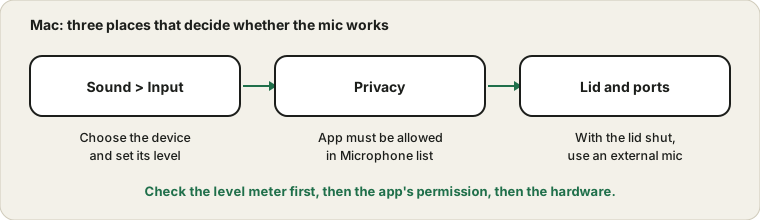
Open System Settings, choose Sound, and click the Input tab. You will see a list of the microphones your Mac can use and, below it, an input level meter. Speak, and the meter should fill in time with your voice. That tells you the Mac is receiving sound from the device that is highlighted in the list.
If several devices are listed, click each one in turn and speak. A Bluetooth headset you left in a bag, a monitor with a mic, and an audio interface can all appear, and the meter belongs to the one that is highlighted.
Check which apps may listen
Go to System Settings, then Privacy and Security, then Microphone. Each app that has asked for access appears with its own toggle. macOS asks the first time an app wants the mic, and if you clicked Don't Allow that day, the answer sticks. Switching the toggle on is the fix, though some apps need a restart to notice.
An app that has never asked will not be in the list at all. Open it and do the thing that uses the microphone, and the prompt should appear. Apple documents the input settings in its Mac user guide, linked at the end.
Hear yourself with a recording
The meter shows signal, not quality. For that, record a clip and play it back. Voice Memos is the simplest way, and QuickTime Player can start a new audio recording from its File menu. Speak for ten seconds in the place where you take calls, then listen with headphones. Fan noise, echo from bare walls and a keyboard thump are all easier to hear on a recording than to see on a meter.
For the same check in a browser, the Mic Test records a short clip and plays it back.
The closed-lid trap
Many people dock a MacBook, close the lid and use an external monitor. With the lid shut, the built-in microphone is not a good choice, so use an external microphone or a headset, or the one in a display that has its own. If your voice suddenly sounds distant or you are not heard at all after docking, open the Input list and select the device you actually mean to use.
Mic Mode in Control Center
While an app is using the microphone, the Control Center on recent macOS versions shows a Mic Mode option, with choices such as Standard, Voice Isolation and Wide Spectrum. It only appears for apps that support it, which includes many video call tools. Voice Isolation tries to reduce background noise around you, Wide Spectrum lets more of the room in. If you sound muffled or your music teacher can't hear the piano, this is a setting worth trying.
If the meter stays flat
Try another input device from the list, then unplug anything you are not using. After that, check there is not a hardware cover over the mic, and read the four-stops method in the silent mic guide. If you are about to take an important call, run the pre-call routine as well. Using a phone instead? See how to test an iPhone microphone.
Sources and scope
Menu names follow recent macOS versions and differ on older ones. The input meter proves a signal arrives; it does not measure sound quality, and Mic Mode appears only for apps that support it.
Official documentation used for this guide:
Try it on ProDeviceTest
- Mic Test — a browser check that behaves like the call tools you will actually use
- Sound Test — check what comes out of your Mac too
- Webcam Test — useful for the camera built into the same lid
More guides: all ProDeviceTest guides