
Google Meet mic not working: start with the browser
Google Meet has no program to install. It runs in a browser tab, and that browser holds the keys to your microphone. So the first question isn't about Meet at all. It is whether the browser is allowed to listen.
Last updated: · By the ProDeviceTest editorial team
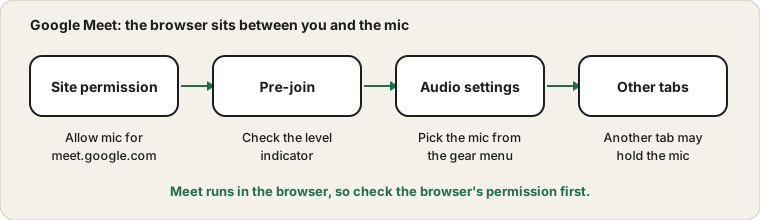
The site permission
When you open Meet, the browser asks whether the site may use your microphone and camera. If you click Block once, Chrome remembers. A crossed-out camera or microphone icon in the address bar means this has happened. Click the icon or the padlock, set Microphone to Allow, and reload the page. Google documents this in its Chrome help page about using your camera and microphone.
The same applies in other browsers, though the menus differ.
Use the pre-join screen
Before you click Join, Meet shows your camera preview and a microphone indicator. Speak and watch the indicator. If it reacts, Meet hears your selected microphone. If it does not, open the settings with the three dots or gear and check which microphone is chosen. Meet's own help page on fixing audio issues lists the same steps for desktop and phone.
Pick the mic in Meet
In Meet's audio settings, there are separate drop-down menus for microphone and speakers. A microphone that is set to the wrong device is quieter than you would think; for example it might use a webcam on a different desk. Choose the right one, speak, and watch the level. If you wear a Bluetooth headset, compare the sound with your laptop mic, because the headset may switch to a lower-quality mode. See why that happens.
Other tabs and apps
Another tab or app may already be using the microphone, such as an earlier meeting tab that you forgot to close. Close tabs you do not need, restart the browser if you suspect one is stuck, and try again. A browser extension that changes audio or privacy can also interfere, so test in a private window, where most extensions are off by default.
The system underneath
The browser still needs the system's permission. On Windows that is the microphone privacy page, and on a Mac it is Privacy and Security, then Microphone, with a toggle for each browser. Without it, the browser's own setting makes no difference. The step-by-step check from the cable upward is in the four-stops guide.
Last checks before the call
Test with the Mic Test in the same browser. If that works and Meet does not, reload the Meet tab and check the permission again. For anything important, follow the pre-call routine. If your company uses Teams, see the Teams guide.
Sources and scope
Browsers and Meet update regularly, so menus can differ. The pre-join indicator shows what Meet hears; it cannot reveal a Workspace admin restriction or a problem on the other person's side.
Official documentation used for this guide:
Try it on ProDeviceTest
- Mic Test — runs in the same browser as Meet, so it shows what Meet will see
- Webcam Test — check the camera permission at the same time
- Sound Test — check your speakers
More guides: all ProDeviceTest guides