
Zoom mic test: check your audio before the meeting starts
Zoom lets you test your microphone before anyone is watching, but a surprising number of people only discover the audio settings while a room full of colleagues waits. This guide is about doing it calmly and in the right order.
Last updated: · By the ProDeviceTest editorial team
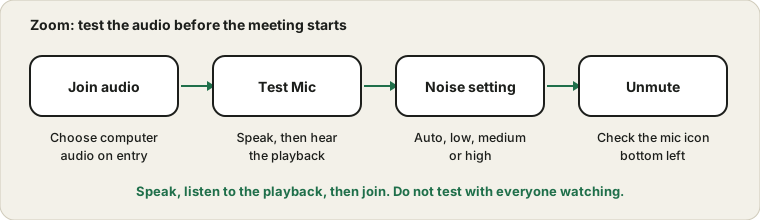
Test before, not during
The best moment to check audio is before joining a real meeting. Open the Zoom app, click your profile picture, open Settings and go to Audio. Zoom has a Test Mic button there: you speak, and it plays your voice back after a pause. Hearing it back tells you the right mic is selected and that the level is reasonable.
Zoom also offers a test meeting you can join on your own, which behaves like a real one without other people. Zoom's support pages describe both.
Choose the microphone by name
In the Audio settings, the Microphone drop-down often says Same as System. That follows whatever Windows or macOS uses, which can change when a headset connects. Pick the device by name if you always use the same one. It is less flexible, but it stops the surprise. After choosing, speak and watch the input level bar under it.
Background noise setting
Zoom has a suppress background noise option with levels from automatic to high. Automatic is a good default. High removes more noise but can clip the quiet ends of words or swallow an instrument. If you teach music or want to share a sound, look for Zoom's original sound option; it turns off much of the processing. Use it with headphones to avoid echo.
The labels move a little between Zoom versions, so if you cannot find an option, use the search box in Settings.
Join with computer audio
When you enter a meeting, Zoom may ask how you want to join audio. Choosing computer audio uses your microphone and speakers. If you close the prompt without choosing, you are in the meeting but silent, which looks exactly like a dead microphone. Look at the bottom-left icon: a microphone with a red line through it means you are muted or not connected to audio. Click it, and choose to join with computer audio if asked.
Automatic volume
There is also an option to adjust the microphone volume automatically. It keeps your level steady, but it can pump up the room noise between sentences. If you hear a hiss that rises when you stop talking, turn the option off and set the level yourself while watching the bar.
When the test fails
If the level bar is dead in Zoom, check the browser Mic Test. If that is dead as well, the issue is the microphone or the system, and the four-stops guide will help. If the browser works and Zoom does not, the permission for the app or the selected device is the usual cause. Read the pre-call routine for the full checklist, and see the Teams guide if your office uses that instead.
Sources and scope
Zoom changes its settings layout between versions, so labels may differ. Zoom's own test shows how Zoom hears you; it does not measure your network, and a host can still mute you.
Official documentation used for this guide:
Try it on ProDeviceTest
- Mic Test — a first check that your mic works at all
- Webcam Test — check your picture while you are at it
- Sound Test — make sure you can hear them well
More guides: all ProDeviceTest guides