Browser says the microphone is blocked: reset the permission
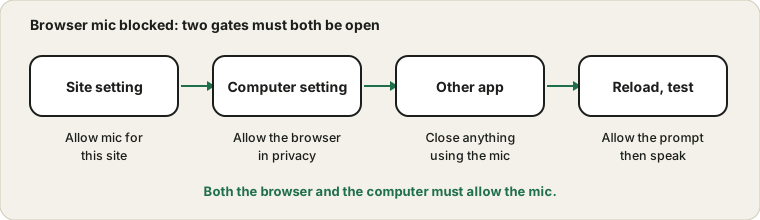
A site says it cannot reach your microphone, or the permission prompt never appears. In a browser, a mic has to pass two gates: the browser's permission for that site, and the operating system's permission for the browser itself. If either is closed, the page sees nothing. Here is how to check both.
Both the browser and the computer must allow the microphone.
Why the prompt does not come back
When you answer a permission prompt, the browser remembers your answer for that site. If you clicked Block once, or dismissed the prompt several times, the browser may stop asking and quietly keep denying. The page then reports a blocked or missing microphone. The fix is to change the stored answer, not to reload repeatedly.
What the browser shows and what it means
What you see
What it means
What to do
No prompt appears
The site was blocked before
Reset the site permission and reload
Prompt appears, you click Allow, nothing happens
System or device problem
Check the system privacy page and the device
Message that the microphone is blocked
Browser or policy block
Check site settings and any managed settings
Message that no microphone was found
Device missing or disabled
Check the input list and connection
Works in one browser, not another
Permission differs per browser
Allow it in the browser you use
Works in a new tab only
Embedded frame or old session
Open the tool in its own tab
Microphone icon with a line through it
Site blocked in the address bar
Click the icon and allow the microphone
Finding the closest row in this table tells you whether to look in the browser, the system or the device.
Chrome and Edge
Click the icon at the left of the address bar, which shows a lock or settings sliders, and open the site settings. Set Microphone to Allow, then reload the page. The browser's own help pages for Chrome explain the same steps. Also check that the right microphone is selected in the browser's site settings, because a wrong default can make the prompt look blocked.
Resetting a blocked permission, step by step
Click the icon at the left of the address bar, which may be a lock or a pair of sliders.
Open the site settings from that panel.
Find Microphone in the list and change it from Block to Allow, or to Ask.
Close the settings and reload the page.
When the prompt appears, choose Allow.
Open the Mic Test and speak to confirm that the level moves.
The wording varies between browsers, but the idea does not: find the site's permission list and set the microphone to allow.
Firefox and Safari
In Firefox, the permission icon in the address bar shows the stored answer and lets you clear it. On a Mac, Safari keeps its own per-site list under Websites in its settings, where Microphone can be set to Ask, Deny or Allow for each site. Clear the entry, reload and answer the prompt again.
The same fix in different browsers
Browser
Where the permission lives
How to reset
Chrome and Edge
Address bar icon, site settings
Set Microphone to Allow or Ask
Firefox
Permission icon in the address bar
Clear the stored decision and reload
Safari on Mac
Safari settings, Websites, Microphone
Set the site to Ask or Allow
Safari on iPhone
Website settings or system settings for Safari
Allow microphone for the site
Chrome on Android
Site settings and app permissions
Allow in both Chrome and the system
Managed work browsers
Set by an administrator
Ask your IT team
On phones, remember that the system permission for the browser app is separate from the site permission inside the browser.
The operating system gate
Both Windows and macOS let you block a whole app from using the microphone. In Windows, the privacy settings have a microphone page with a switch for apps and a list that includes browsers. On a Mac, the Privacy and Security settings list each app that has asked for the microphone, with a toggle. If the browser is switched off there, no site can use the mic, whatever the browser says.
The system privacy page, explained
Both Windows and macOS keep a list of apps that may use the microphone. A browser is an app on that list. If it is switched off, no website can reach the microphone, however the site permission is set. On Windows, the page has an overall switch, a switch for apps and a switch for desktop apps. On a Mac, each app has its own toggle under Privacy and Security.
When you change a system permission, the browser may need to restart before it notices. Close all of its windows, reopen it and try again. If the toggle for your browser is missing on a Mac, the browser has not asked for the microphone yet. Open a page that requests it, and the entry appears after you answer the prompt.
Secure pages and embedded frames
Browsers expose the microphone only to secure pages, and a page embedded inside another may need explicit permission from the outer page. If a tool works in a new tab but not inside an embed, open it in its own tab. A site opened as a plain unsecured address will usually not be able to ask for the mic at all.
Secure pages, frames and managed settings
Browsers only give microphone access to pages loaded over a secure connection, so a page on a plain unsecured address will not be able to ask.
A tool embedded in another page may need that outer page to allow microphone access for the embed.
Opening the tool directly in its own tab removes most embedding problems.
Work and school browsers can block microphone access by policy, and the permission may be greyed out.
Privacy extensions can block permission requests, so test in a private window.
Very old browsers may not support microphone access at all, so update yours.
If you suspect a policy, the browser's settings page may say that the setting is managed by your organisation.
Confirm the result in a clean test
After you reset a permission, test with a tool that shows a level. Open the Mic Test, allow the prompt, speak and watch the bar. Then open the page that originally failed and try again. If the test works and the other page does not, the other page has its own device choice, which you can change in its settings. If both fail, go back to the system privacy page and check the toggle for your browser.
Keep the Mic Test bookmarked. It is a quick way to see whether a problem lives in the browser, the system or the device, and it lets you check after every change.
Another app may be using it
If permissions are right and the page still cannot start the mic, another app may be holding the microphone. Close call apps, recorders and other tabs and try again. The guide to apps fighting for the mic explains why this happens. After fixing, open the Mic Test, allow the prompt and confirm the meter moves.
Other apps and tabs that hold the microphone
Even with permissions right, a page cannot start the microphone if another program has taken it exclusively. A call app, a recorder or another browser tab with an active call can do this. Look for a recording indicator on tabs, close apps you do not need and try again. If a virtual audio device or a voice changer is installed, it may be holding the device as well.
On some systems, the browser shows a different error for a busy microphone, such as one that says the device is in use or could not start. If you see that wording, look for another program using the microphone, rather than at permissions. The next guide explains the exclusive mode setting that makes this more likely.
Phones and tablets add a system layer
On a phone, a website in the browser needs two permissions: the site's permission inside the browser, and the browser app's permission in the system settings. If either is off, the page cannot reach the microphone. On Android, open the app permissions for the browser and allow the microphone, then open the site settings in the browser and check the site. On an iPhone, open the Settings app, find the browser and allow the microphone, then check the website settings inside Safari or the browser you use.
Some phone browsers show a small banner asking for access, and it can disappear if you scroll or switch apps. If you missed it, reload the page. If the prompt never returns, reset the site permission in the browser's settings and try again. When the microphone still fails on the phone but works on a computer, test the phone with a voice recorder to be sure the hardware is fine.
Questions people ask most
Why does the browser keep asking each time? The setting may be Ask instead of Allow. Choose Allow for sites you trust.
Is it safe to allow the microphone for a test tool? It is reasonable for a site you trust, and you can remove the permission later.
Can I reset all permissions? Yes, most browsers offer a reset option in their privacy settings, but it affects every site.
What if nothing helps? Test the microphone in another browser and in the system settings, as described in the mic not working guide.
Does this apply to Google Meet as well? Yes, and the Meet guide adds steps specific to that service.
Sources and scope
Browser menus are renamed and moved often, so the icon and wording on your version may differ. Managed work or school computers can also block the microphone by policy.