Mic works in one app, then goes silent in the next: apps fighting for it
You test the microphone and it is fine, then you open a game, a recorder or a meeting and it goes quiet. Nothing is broken. In many setups, one program can take control of the microphone, and the next program gets silence. Knowing how that works turns a baffling problem into a short checklist.
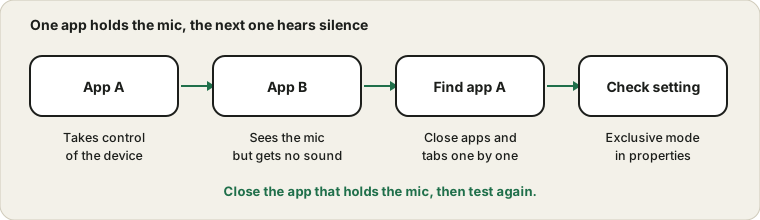
Close the app that holds the mic, then test again.
Why a mic can only be used by one app at a time
On Windows, audio devices can be opened in exclusive mode. An app that does this gets direct control and no other app can use the device until the first one lets go. Some apps use it to get lower delay or better quality, and some conferencing and recording programs do it by default. The next app then sees a device that exists but gives it no sound.
Who often holds the microphone
Program type
Why it holds the device
How to release it
Meeting and call apps
They keep the microphone open for quick unmuting
Quit the app completely
Voice chat in games
Game voice chat runs in the background
Close the game or its voice chat
Screen and audio recorders
They capture continuously
Stop the recording and quit the tool
Streaming software
It owns the device while running
Close or disable the source
Browser tabs with calls
A page may still be listening
Close the tab
Voice changers and virtual cables
They sit between the microphone and apps
Disable or restart them
Voice assistants and dictation tools
They listen for a trigger
Turn off or pause listening
Listing these in order of likelihood gives you a quick plan for finding the culprit.
Where the setting lives
In the Sound settings, open the microphone's properties and look for the Advanced tab. It has an option allowing applications to take exclusive control of the device. Turning it off stops apps from locking the mic, and unticking the priority option stops one app from overriding the rest. Test with and without it, because some professional audio apps need the setting on.
Changing the exclusive mode setting
Open the sound settings and find the microphone in the input list.
Open the device properties or the classic sound panel's Recording tab.
Open the Advanced tab for that microphone.
Note the current state of the exclusive control options.
Untick the option that allows apps to take exclusive control, and apply the change.
Restart the apps that use the microphone and test again.
Put the setting back if it does not help or if a professional audio app needs it.
Always note the original state before you change it. That makes a clean undo possible.
Finding the app that holds it
Think about which apps could be listening: a call app minimised in the tray, a game launcher with voice chat, a screen recorder, a streaming app or a virtual meeting room in a browser tab. Close them one at a time and open the Mic Test after each. When the meter comes back, you have found the app. Quitting from the tray, not just closing the window, matters because many keep running.
Finding the culprit by elimination
When you cannot tell which program holds the microphone, treat it like a puzzle. Open the Mic Test and note that it fails. Close one likely program, test again, and repeat. Start with meeting apps, then recorders, then game software, then anything that runs in the tray. Quit from the tray menu, not only by closing the window, because many apps keep running in the background.
If you close everything and the microphone still fails, restart the computer, and open only the Mic Test first. If it works, open your usual apps one by one and test after each. The program that breaks it is the one that grabs the device on startup, and you can change its settings or its start-up behaviour.
Sleep, wake and updates
After a computer wakes from sleep, or after an update, a program may reopen the microphone before you do. That can leave other apps without it, and it can happen without any obvious sign. If the microphone fails right after waking the computer, check which apps start or resume automatically. Closing them and testing again will tell you whether one of them is the holder.
If an update changes the exclusive setting, you may find that a program that worked before now blocks others. Check the Advanced tab again after major updates, compare it with your note and restore what you prefer.
Browser tabs count too
A browser tab with an active call or recording can hold the microphone. A small recording icon on the tab shows it. Close any tab that is using the mic, then try again. If a tool still reports the mic as blocked, the browser permission guide covers the site and system switches.
Browser habits that keep the microphone free
Close tabs from earlier meetings when you finish, instead of leaving them open.
Look for the recording indicator on tabs before starting another call.
Avoid running two meeting tools in different browsers at once.
Restart the browser if a tab seems to be stuck holding the microphone.
Use a separate browser profile for work and personal calls if permissions often clash.
Voice changers, virtual cables and mixing apps place their own device between your mic and the app. If the original is grabbed by one of those, others see silence. Make sure the app you need is set to the right entry, and check that the virtual device itself is running. For streaming setups, see the OBS microphone guide.
How virtual audio devices change the picture
Voice changers, mixers and streaming tools often add a virtual microphone. Apps then listen to the virtual device, and the virtual device listens to your real one. This is convenient, but it creates a dependency. If the tool is not running, apps that use the virtual microphone hear nothing, and if the tool holds the real microphone exclusively, other apps cannot reach it.
Keep a simple rule: only the tool that needs the real microphone should use it, and everything else should use the virtual device, or the other way round, and the choice should be written down. If you have lost track, disable the virtual device in the sound settings for a test, and see whether the real microphone becomes available to the apps again.
Write down your setup once
A short note about your audio setup saves a lot of time when a problem appears. Write which microphone is the default, which apps use which device, whether exclusive mode is on and which virtual tools run at startup. When the microphone stops working, compare the current state with your note. The difference is often the cause, and you can undo a change quickly because you know what the original looked like.
Update the note when you change hardware or install new audio software. A few lines in a text file are enough.
A quick recovery plan before a meeting
If the microphone fails five minutes before a meeting, use a short recovery plan. Quit every app that could hold the microphone, including the meeting app. Open the Mic Test and confirm the bar moves. Open only the meeting app and join. If it still fails, restart the computer and open only the meeting app, and keep your phone ready as a backup. The plan removes the guessing, and in most cases the microphone returns once the other holder is gone.
When to stop hunting and look elsewhere
If you have closed every program, checked the exclusive setting and restarted, and the microphone is still silent, the problem is probably not a conflict. Go back to the basics: the device selection, the privacy switches and the cable. Test the microphone on another computer. A conflict is a nice problem to have, because the fix is usually free, but if nothing releases the device, the hardware, a driver or a system permission is the more likely cause. The mic not working guide walks through those checks from the cable upward.
On a Mac or a phone
macOS usually lets several apps read the microphone at once, so a total lockout is rarer. The more common Mac cause is a Bluetooth headset switching to its call profile, or a per-app privacy switch. Phones usually give the mic to the app in front, and another app that is recording in the background can block it. In every case, closing the other app and testing again is the fastest way to find out.
How different systems handle sharing
System
Typical behaviour
Common trouble
Windows
Apps can request exclusive control
One app locks the device
macOS
Several apps usually share the microphone
Bluetooth profile and privacy toggles
Android
The foreground app usually gets the microphone
Background recorders and call apps
iPhone
The active app gets priority
Another call or recording blocks it
Browser on any system
Per-tab permission and device use
A forgotten call tab
Linux
Depends on the sound server
Some tools hold devices directly
Knowing how your system behaves tells you whether to hunt for a program or to look at a setting.
Questions people ask most
Is exclusive mode bad? No. It reduces delay for some audio work, but it can block other apps.
Why does the microphone work after a restart only? The program that holds it starts later, or the previous holder has released it.
Can two apps record at once? Often yes, but not always. The exclusive setting and the apps themselves decide.
What about streaming? The OBS guide covers the mixer and track steps.
What if the microphone appears dead everywhere? Go back to the mic not working guide and check from the cable upward.
Sources and scope
Exclusive mode is a Windows setting, and what each app does with the device is up to that app. The steps are a way to narrow down the cause, and some professional audio tools need the setting on.