OBS not picking up your mic: source, mixer, tracks and monitoring
You can hear yourself in a call, but the OBS mixer sits flat or the recording comes back silent. OBS handles audio through several layers, global devices, sources, mixer controls and tracks, and a mistake in any one of them can silence the mic while everything else looks fine.
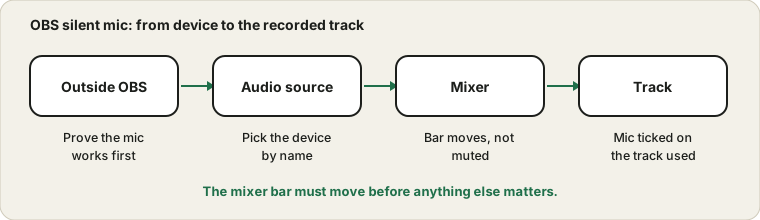
The mixer bar must move before anything else matters.
Confirm the mic works outside OBS
Start by proving the microphone itself works. Open the Mic Test in a browser and speak. If the meter moves there, the mic and the system settings are fine, and the issue is inside OBS. If it does not, fix the mic first with the mic not working guide.
Symptoms inside OBS and where to look
What you see
Likely cause
What to check
Mixer bar does not move
Wrong device or no permission
Source device and system privacy
Bar moves but recording is silent
Track assignment or mute
Advanced audio properties and the mute icon
You hear yourself but the stream does not
Monitor only mode
Set monitoring to monitor and output
Sound is doubled or echoing
Mic added twice
Use either global device or a source, not both
Mic is quiet
Level or gain
Mixer slider and system input level
Desktop sound is missing
Different source
Add desktop audio capture, not the mic
Works until another app opens
Device conflict
Close other apps and check exclusive mode
Matching your symptom to a row saves you from opening every settings page in OBS.
Global device or a source in the scene
OBS can take the mic in two ways. You can choose it as a global Mic or Auxiliary Audio device in the audio settings, or add an Audio Input Capture source to a scene and pick the device there. Using both can cause doubled sound, and using neither means no mic. The OBS knowledge base page on audio input and output capture explains the two approaches. Choose one, select the right device by name and avoid Default if the machine has several inputs.
Adding the microphone cleanly
Open the OBS settings and the audio page.
Choose your microphone as the Mic or Auxiliary device, or add an audio input capture source to your scene.
Pick the device by name, not by default, if you have several.
Speak and watch the mixer bar.
Remove the duplicate if you added the microphone in both ways.
Do a short test recording and play it back.
Using one method keeps the mixer simple. If you need the microphone in every scene, the global device is usually easier.
Watch the mixer
In the Audio Mixer panel, each source has a level bar. Speak and see whether the bar moves. If it moves, OBS is hearing the mic. If it sits at the bottom, check the device choice again. A small speaker icon next to the bar shows if the source is muted, and a muted source is a very common reason for a silent track. Check the volume slider too, since it may have been dragged low.
What the mixer controls do
Control
What it does
Common mistake
Level bar
Shows the signal OBS hears
Ignoring it and judging by ear
Volume slider
Sets the level sent to the mix
Left low by accident
Mute icon
Silences the source
Clicked and forgotten
Gear menu
Opens filters and advanced properties
Missing the track settings
Monitoring option
Chooses what you hear locally
Using monitor only when you want to stream
Filters
Add gain, noise suppression, a gate
Stacking too many filters
If the bar moves, OBS hears the microphone. If the bar is flat, nothing later in the chain can help.
Check track assignment
OBS can record to several audio tracks. In the advanced audio properties, each source can be switched on or off for each track. If your recording is set to use Track 1 and the mic is assigned to Track 2 only, the mic will exist in the mixer but not in the file. Make sure the track used by your recording or stream is ticked for the mic.
Filters: helpful, but easy to overdo
OBS lets you add filters to a microphone source, such as noise suppression, a noise gate, a compressor and gain. Used lightly, they can improve a voice a lot. Stacked together without care, they can make the sound thin, pumping or silent. If your microphone worked and then went silent after you added filters, disable them all and add back one at a time.
A gate with a high threshold can silence quiet speech. A strong noise suppression filter can chop words. A gain filter set too high can clip, as the distorted mic guide explains. Keep the chain short, test after each filter and record a short clip so that you hear what viewers will hear, not just what the monitor shows.
Setting levels for viewers
The mixer shows colours: green for a good level, yellow for loud and red for too loud. Aim for your voice to sit in the green and touch yellow on louder moments, without reaching red. If you play music or a game with loud sound, make sure your voice stays clear above it. Lower the game volume a little, rather than raising your microphone to the point of distortion.
Listen to a recording on headphones, not only on speakers, and ask a friend to listen to a test stream. Their opinion on your volume compared with the game is valuable, because it tells you what viewers will hear.
Scenes, sources and where the microphone lives
In OBS, scenes hold sources, and the global audio devices sit outside the scenes. If you add the microphone as a source inside one scene, it may be silent when you switch to another scene that does not include it. If you want the microphone in every scene, use the global device or add the source to each scene. After you build your scenes, switch between each one while speaking and watch the mixer, to confirm that your voice is present everywhere.
The same applies to desktop audio and other sources. If a sound works in one scene and vanishes in another, check which sources the second scene contains.
Monitoring is not the same as recording
The monitoring setting decides whether you hear a source in your headphones. Monitor Only plays a source to you but does not send it to the stream. Monitor and Output does both. If you can hear yourself but the recording is silent, check that the mode is not set to Monitor Only. If you hear a delayed copy of yourself, monitoring is on, and headphones help avoid the echo described in the echo guide.
A pre-stream checklist
The microphone works in the browser and in the system settings.
The correct device is chosen in OBS, by name.
The mixer bar moves when you speak and the source is not muted.
The microphone is assigned to the track used by the stream and the recording.
Monitoring is set so that viewers hear you.
Filters are few and tested.
A short test recording sounds clear on headphones.
No other app is holding the microphone.
Running through this list takes a minute and prevents the silent first ten minutes of a stream.
Another app may be holding the mic
Some audio devices work best with one app at a time. If a call app, a recorder or another OBS source is using the device, OBS may show no signal. Close the other app, restart OBS and test again. The exclusive mode guide covers the Windows setting behind this.
Virtual audio devices and mixing tools
Many streamers use virtual audio cables or mixing tools to route sound. They can be powerful, but they add another place for a mistake. If OBS shows no signal while the physical microphone works, check whether the tool has taken control of the device, whether the OBS source is pointed at the virtual device or the real one, and whether the tool itself is running. Disabling the virtual device for a test removes it from the picture.
When you use a mixing tool, remember that its volume controls come before OBS. A low setting in the tool will show up as a quiet bar in OBS. Check both places, and keep notes on the routing, so that you remember how the signal flows after a break.
Recording and streaming use the same audio differently
OBS can send audio to a recording file and to a live stream, and each can use different tracks. A common surprise is a recording that has your voice and a stream that does not, or the other way around. That happens when the microphone is assigned to one track and the stream is set to use another. Open the output settings and check which tracks the stream and the recording use, then open the advanced audio properties and make sure the microphone is ticked for those tracks.
Test both outputs, not just one. A short local recording shows the recording track, and a private or test stream shows the stream track. If you only check one, you may find out about the other in front of your audience.
The order that saves time
Start with the microphone outside OBS, then the device choice, then the mixer bar, then mute and track assignment, then monitoring, then filters. Working in this order matches the path of the signal, so each step either fixes the problem or rules out a section of the chain. Skipping ahead to filters or reinstalling OBS is rarely necessary, and it can hide the real cause.
Questions people ask most
Why can I hear myself but viewers cannot? Check the monitoring mode and the track assignment.
Should I use the global device or a source? Either works. Use one and avoid doubling.
Why is my voice delayed in my headphones? Monitoring adds a small delay, and the echo guide explains why this can sound like an echo.
Do I need filters? Not necessarily. A good level and position matter more.
What if the microphone vanishes after sleep? Restart OBS and check the device list, and see the USB microphone guide for connection issues.
Sources and scope
OBS changes between releases and menus may be named differently on your version. This guide covers common causes, not every plugin or virtual audio setup.