
Teams mic not working: personal setting, work policy or join screen?
Teams is different from most call apps because your microphone may be affected by someone else: your employer's IT team. This guide helps you work out whether the problem is your own setting, a policy on your work account, or just the way you joined.
Last updated: · By the ProDeviceTest editorial team
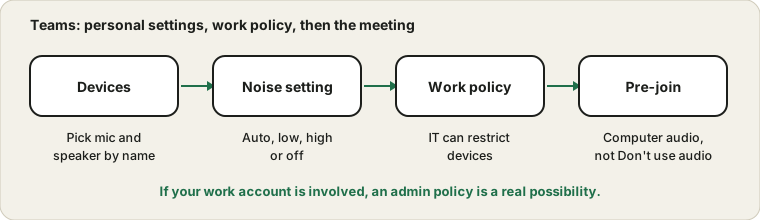
Start with the join screen
Before a meeting starts, Teams shows a screen with options for audio. Choosing computer audio uses your microphone and speakers. If you pick Don't use audio, you will be in the meeting without a microphone, and unmuting does nothing. If you land in a meeting and nobody hears you, look at the bottom of the screen for the microphone icon and the join audio option. Fixing that costs one click and no troubleshooting.
Your own device settings
Open Teams settings and look for Devices. Select the microphone and speakers by name instead of using the default. Some versions offer a test call there; if yours has one, it records you and plays the recording back. Microsoft documents these screens in its support articles on managing device settings and on a microphone that isn't working.
Speak and look at the level bar next to the microphone. A moving bar means Teams can hear the device you picked.
Noise suppression
Teams lets you choose how aggressively it removes background noise, from automatic to low and high, and sometimes off. A high setting works well for typing and fans, but it can cut a quiet voice and make music sound strange. If you sound choppy, set it to low or auto and test again.
Work and school accounts
If Teams is managed by an employer or school, an administrator can restrict devices, features or meeting options. For example, they may limit which meetings allow you to unmute, or prevent certain devices. If the microphone works fine in other apps and in the browser test but nowhere in Teams for work, ask your IT team. Mention the device, what you tried and whether it works in a personal Teams account or in another call tool. That makes the conversation quick.
System and browser permissions
The app depends on system privacy settings, and the web version depends on the browser's microphone permission for the Teams site. If the app is silent, check the system's microphone privacy page. If the web version asks for permission and you blocked it once, click the padlock in the address bar and allow the microphone.
Keep the whole picture in mind
First confirm the microphone with the browser test. That splits the problem cleanly: the browser sees you but Teams does not, and then the fault is in Teams, its policy or its permissions. Compare with the Zoom version of this check and the Google Meet one; the ideas are similar but the menus differ.
Sources and scope
Teams has several versions, and an organisation's policies can change what you see. A device check shows what Teams hears; it cannot show restrictions your administrator has set.
Official documentation used for this guide:
Try it on ProDeviceTest
- Mic Test — first rule out the microphone itself
- Webcam Test — check the camera in the same sitting
- Sound Test — check your speakers
More guides: all ProDeviceTest guides