
How to test the microphone on an Android phone
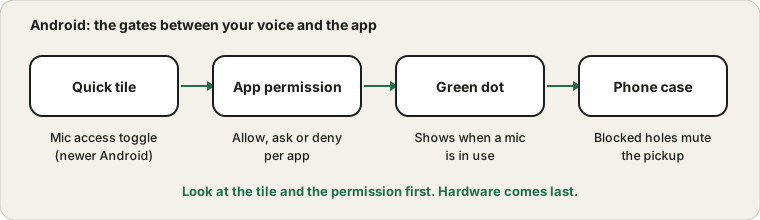
Android puts three gates in front of the microphone: a device-wide switch, a permission for each app, and sometimes a physical obstruction. Because phones differ so much from brand to brand, the trick is to know what to look for rather than memorise a menu path.
Last updated: · By the ProDeviceTest editorial team
The device-wide switch
On newer versions of Android, the quick settings panel can include a tile for microphone access, and the privacy settings carry the same switch. When it is off, every app is blocked at once, whatever permission it holds. Google's help page on checking whether your camera or microphone is on or off shows the tile and the indicator. Pull the panel down, look for it, and switch it on before anything else.
Not every phone offers this toggle, and its name and place vary. If you cannot find it, move on; the next step still applies.
The permission for each app
Open Settings, then Apps, choose the app, and open its permissions. Microphone usually offers choices like Allow only while using the app, Ask every time, or Don't allow. A call app set to Don't allow will connect and then stay silent. Switching it to allow only while using the app is enough for nearly every app. Google's guide to changing app permissions explains the options.
Some phones also have a privacy dashboard that shows which apps used the microphone recently, which is handy if you suspect an app has been holding it.
The green dot
When an app is using the microphone, a small green dot shows in the corner of the status bar on current Android versions. If you start a call and there is no dot, the app has not got the mic. If there is a dot while you are not in any call, another app is listening, and closing it may free the mic.
Test with a recording
Open the voice recorder app that came with the phone, or any simple recorder, and record ten seconds of normal speech. Play it back on loudspeaker and then with headphones. A clear recording proves the microphone works, so any trouble sits in the specific app. A crackly or silent clip points at the phone.
The same check in a browser is the Mic Test. If the browser asks for permission and nothing happens, tap the padlock or site settings in Chrome and allow the microphone for that page. Google documents this in its Chrome help.
Cases, covers and dust
The microphone sits behind a very small hole at the bottom edge. Thick cases, a cover that slipped and a screen protector that spills over can block it. Take the case off, and clean the hole with a soft dry brush. A second microphone near the camera is used for video and noise reduction, so a clip that sounds fine in video but poor in a call, or the other way around, is a useful clue.
Brand differences
Samsung, Xiaomi, Google and others lay out their settings differently, and some add their own noise cancellation or call recording options. If a step does not match your screen, use the search box at the top of Settings and type microphone. It is quicker than guessing a path.
If the dot shows and the recorder works but people still can't hear you, move on to the four-stops guide and the pre-call routine. On an iPhone instead? See the iPhone guide.
Sources and scope
Android versions and phone brands lay out their settings differently, so treat the menu names as a guide. A recorder test shows whether the phone picks up sound; it cannot diagnose a hardware fault.
Official documentation used for this guide:
Try it on ProDeviceTest
- Mic Test — open it in Chrome to check the browser's microphone path
- Sound Test — check the speaker side
- Touch Screen Test — while you are checking the phone
More guides: all ProDeviceTest guides