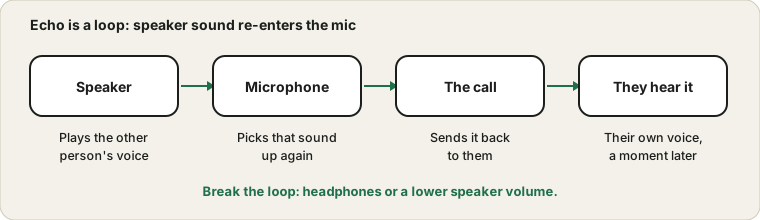
First, who is hearing the echo?
This answer decides everything. If other people hear their own voice coming back, the problem is on your side: their words play from your speakers and get picked up by your microphone. If you hear your own voice delayed, the cause is usually on their side or in a setting that plays your mic back to you. Ask one person to confirm what they hear before you change anything.
Who hears what, and what it points to
The person who hears the echo is the best clue to its origin. Use this table to decide where to look first.
| Who hears the echo | What they hear | Likely origin | First move |
|---|
| Other people | Their own voice coming back | Your speakers feeding your microphone | Use headphones or lower the speaker volume |
| You | Your own voice delayed | Their side, or a setting on yours | Ask them to use headphones, and check Listen to this device |
| Everyone | A howl that builds | Two devices in the same room | Leave the call on one device |
| Only on a recording | A hollow, room-like sound | The room itself | Move closer and use soft furnishings |
| Only in one app | Delay in that app only | App audio setting or monitoring | Check that app's monitor option |
| Only with Bluetooth | Slight delay on your own voice | Headset sidetone | Turn sidetone down if the headset allows |
Asking one person to describe exactly what they hear is worth thirty seconds and often settles the question.
How the loop forms
When you use laptop speakers and the built-in mic, the mic is only a short distance from the sound. Call apps try to remove that with echo cancellation, but they work best when the speaker is not very loud and the room is not very reflective. A loud speaker, a hard-walled room or a mic placed right beside a speaker can overwhelm the cancellation and let the echo through.
Open the Mic Test while a video plays from your speakers. If the meter moves with the video, your mic is hearing your speakers and the loop is real.
Five ways to break the loop
- Put on headphones, wired or wireless, so speaker sound cannot reach the microphone.
- Lower the speaker volume and keep the speakers pointing away from the microphone.
- Move the microphone closer to your mouth than to any speaker.
- Join the call from one device only, or mute the speaker on the second device.
- Turn on the app's echo cancellation and noise suppression and test with a colleague.
Any one of these is often enough. Using two together makes the fix very reliable.
Headphones are the cleanest cure
If the speaker sound cannot reach the microphone, there is nothing to echo. Wired or wireless headphones remove the loop almost completely, even with the laptop's own mic. If you have to use speakers, turn them down, point them away from the mic and keep the mic closer to your mouth than to the speaker.
Different setups and their echo risk
| Setup | Echo risk | Why |
|---|
| Headphones with boom microphone | Very low | Speaker sound stays in your ears |
| Laptop speakers and built-in microphone | High | Microphone sits close to the speakers |
| USB microphone with desktop speakers | Medium to high | Depends on speaker volume and position |
| Speakerphone in a meeting room | Medium | Needs echo cancellation designed for rooms |
| Phone on speaker | High | The microphone is next to the speaker |
| Earbuds | Low | Sound goes into the ear, but a loose fit leaks |
If you must use speakers, a lower volume and a closer microphone make a bigger difference than any setting.
Hearing yourself on purpose
Windows has a setting in the microphone's properties called Listen to this device. When it is on, your voice plays through your speakers or headphones as you talk. It is meant for monitoring, but it is easy to leave on by accident and it sounds just like an echo. Turn it off if you only hear yourself, and remember some headsets also add a small amount of their own sidetone.
Sidetone and monitoring, explained
Hearing your own voice in your headphones is called monitoring or sidetone. It is useful in a call, because it helps you judge how loudly you are speaking. Some headsets add a small amount automatically, and some software lets you turn it on. The trouble starts when monitoring comes through speakers, or when it is delayed, because then it sounds like an echo and can be confusing.
If you hear yourself with a slight delay, look for monitoring, listen to this device or sidetone in the audio settings of the system, the headset software and the app. Turn each off in turn and test. If you want to keep some sidetone, choose a low level and a wired headset, where the delay is short enough not to bother you.
Two devices in one room
A very common cause is two devices joined to the same call from the same room, such as a laptop and a phone. Each microphone picks up the other's speaker, and everyone hears a delayed copy. Leave the call on one device, or mute the speaker and mic on the second. This also explains feedback that builds slowly into a howl.
Meeting rooms and shared spaces
In a room with several people and several devices, echo is almost guaranteed unless you plan for it. The usual rule is one microphone and one speaker for the whole room, with everyone else muted and their speakers off. If people join from their own laptops while sitting in the same room, ask them to wear headphones and mute the room's speaker, or to leave the room audio to a single device.
A speakerphone made for meeting rooms handles echo much better than a laptop. If you do not have one, place the laptop in the middle of the table, keep the volume modest and ask people to speak one at a time. Reflective surfaces such as glass walls and bare tables make echo worse, so a rug or a curtain can help.
Record a sample to hear what others hear
It is hard to judge echo from your own seat, because you hear your voice directly. Ask a friend to join a call and record a minute of it, if the app allows, or record your own side with the Voice Recorder while a video plays from your speakers. Listen back on headphones. If you hear the video faintly in your recording, the microphone is picking up your speakers, and the echo loop is real.
Repeat the recording after each change: headphones on, speaker volume down, microphone moved. When the video disappears from your recording, you have broken the loop. A short, repeatable test like this beats guessing, and it gives you something concrete to compare.
It is also worth testing once in the room where you will take important calls. Rooms differ a lot, and a setup that is clean in a bedroom may echo in a kitchen with hard walls. If the problem only appears in one room, soft furnishings or a headset are the simplest answers.
Check the app's own audio settings
Most call apps have a setting for suppressing background noise or echo, and their defaults differ. If echo continues after headphones and a single device, try switching that setting between automatic and a stronger or weaker option, then run a short test call. The Zoom pre-meeting test and the general check before a call are good places to rehearse it.
Echo that comes from the service or the other side
Sometimes the echo is not caused by anything you can change. The other person may be using speakers, a poor headset or two devices at once, and you hear the result. A call service can also introduce delay that makes ordinary room sound seem like an echo. If you hear an echo of yourself, ask the other person to try headphones. If the echo disappears, you know the cause was on their side.
When you control the meeting, you can reduce these problems by asking everyone to mute when they are not speaking, and to use headphones. A short reminder at the start of a call prevents most echo before it begins.
A two-minute test with a friend
The fastest way to settle an echo is a short test call. Ask a friend to join, talk for thirty seconds and tell you exactly what they hear, then change one thing at a time while you keep talking: put on headphones, lower the volume, move the microphone. Ask them to say when the echo changes. The moment it stops, you know which change fixed it.
Sources and scope
Echo can start on your side, on the other person's side or in the call service, and a browser test cannot see what other people hear. Steps are general; app menus change between versions.
Official documentation used for this guide: